
01
Opening hours and capacity
Booking settings determine when customers can book and the maximum party size. Correct limits prevent overlapping bookings.
Open Bookings and go to Booking settings. An empty opening time means the restaurant is closed that day, while an empty Total seats field means capacity is unlimited.
How to do it
- 1Enter Opens and Closes times for each open day.
- 2Set the booking interval, default duration, total seats and largest online party size.
- 3Keep Online booking enabled when you want to accept bookings online.
- 4Select Save settings.
Who can do this?
- Owner
- Manager
02
Exceptional opening hours
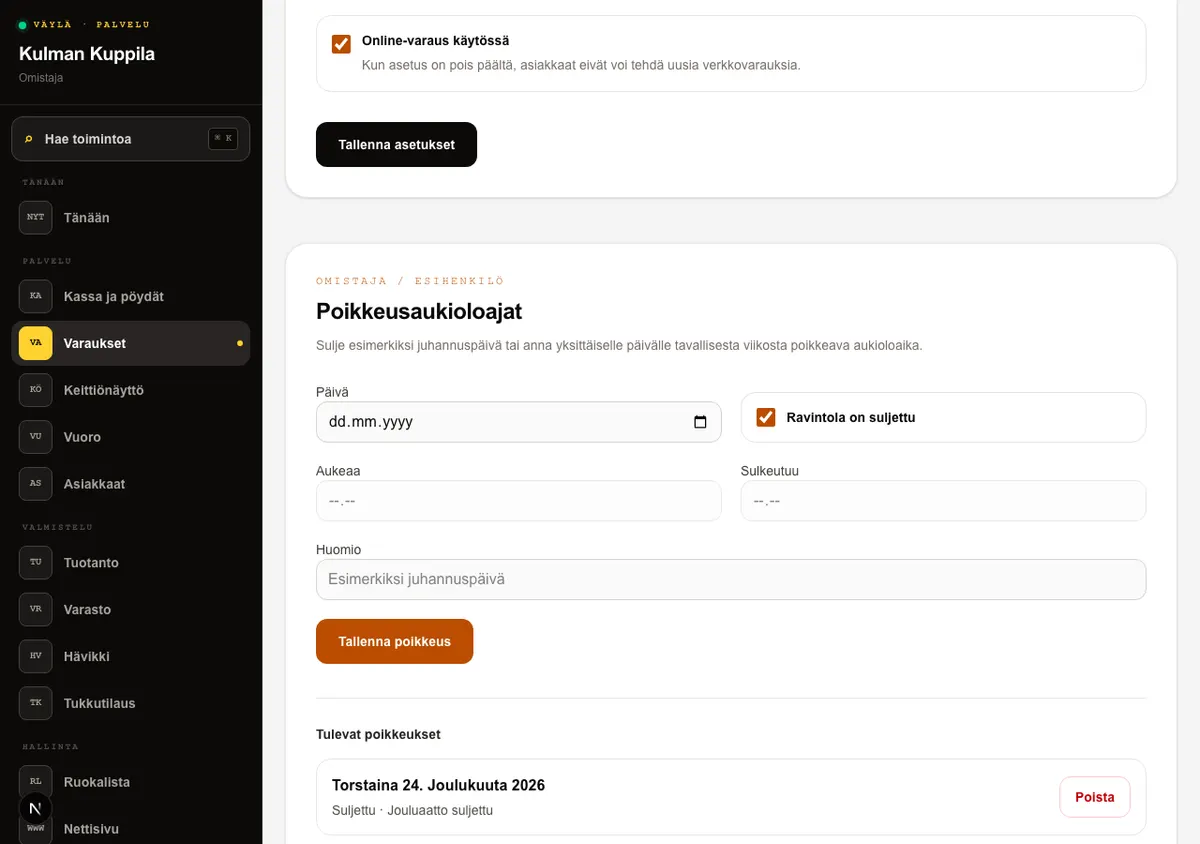
Exceptional opening hours override the regular weekly hours for the selected date. A closed exception removes all booking times for that date, while custom opening and closing times limit the times offered to customers.
Upcoming exceptions are shown to customers in the restaurant’s Opening hours section and on the Book a table page. A note helps staff identify the exception, such as Midsummer Day.
How to do it
- 1Open Bookings and go to the Exceptional opening hours card.
- 2Select a date. Leave Restaurant is closed selected, or clear it and enter the exceptional opening and closing times.
- 3Add a note when needed and select Save exception.
- 4Remove an unnecessary future exception with the Remove button on its row.
Who can do this?
- Owner
- Manager
03
Weekly demand and daily bookings
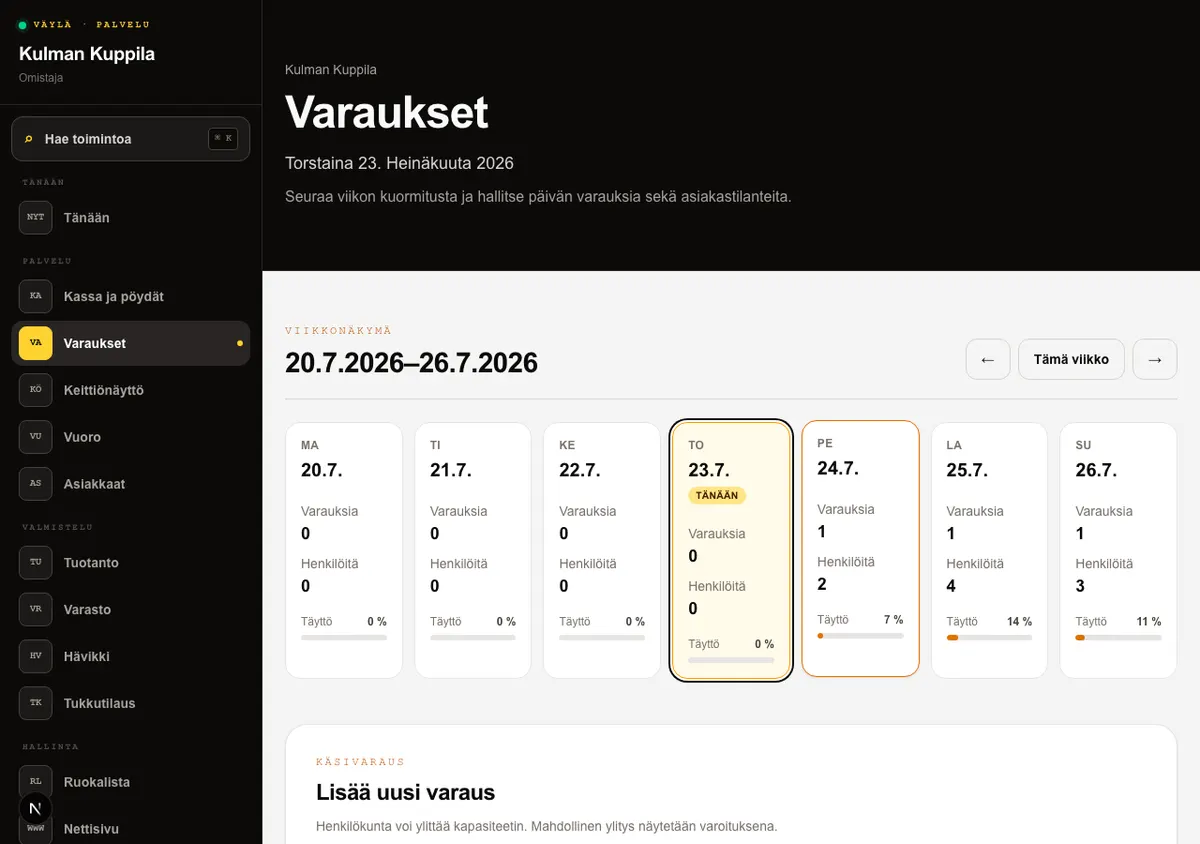
The week view shows the number of active bookings and people from Monday to Sunday. If total capacity is set, each card shows occupancy calculated from the number of people; an overrun appears as 100%+. Cancelled bookings are excluded.
The day view brings together online, phone and walk-in parties. A booking moves through Pending, Confirmed and Arrived. It can also be marked No-show or Cancelled. Add a manual booking under Add new booking; staff can exceed capacity, but the view shows a warning.
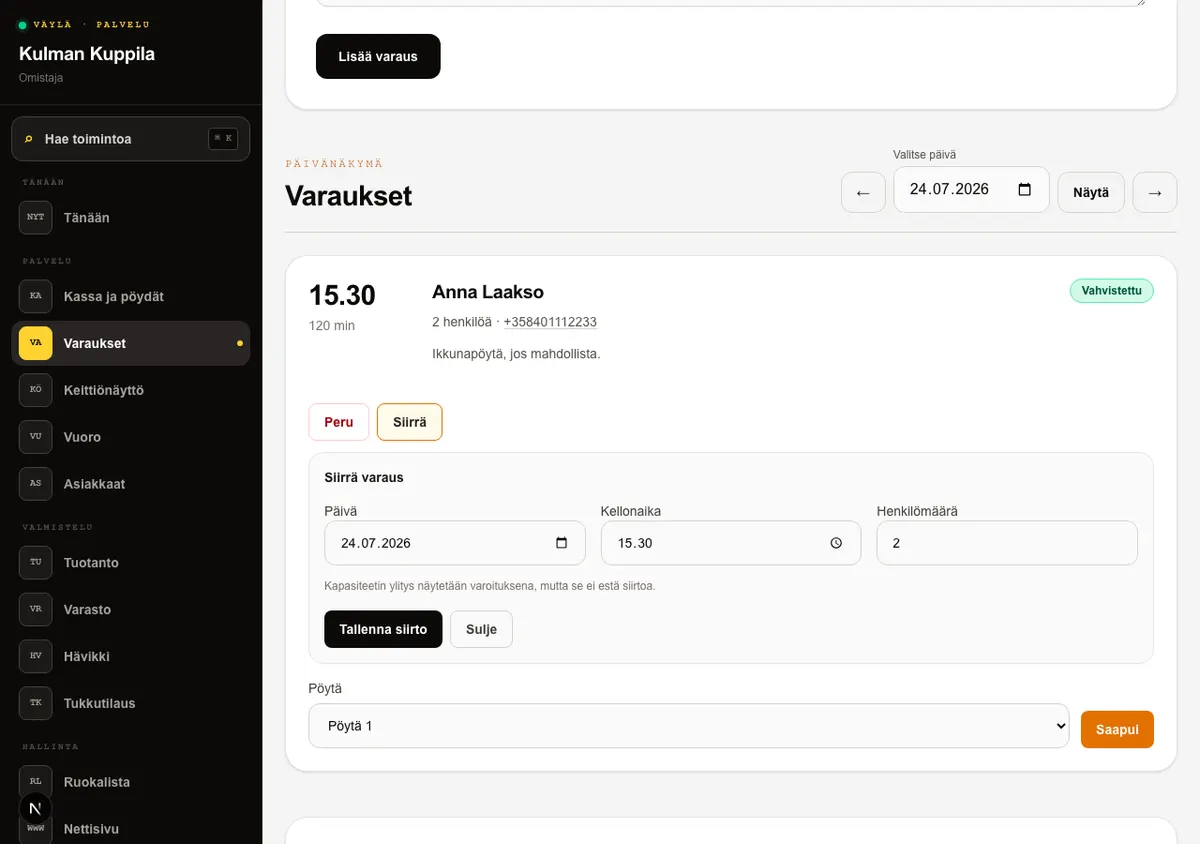
An active booking can be moved to a new date or time and its party size changed at the same time. A capacity overrun produces a warning but does not prevent staff from rescheduling. If the booking has an email address, the service attempts to send the customer the new time and the same cancellation link.
Booking confirmations and rescheduling confirmations include a calendar attachment that the customer can add to their calendar.
How to do it
- 1Move backward or forward by week with the arrows. This week returns to the current Helsinki week.
- 2Open the day view by selecting a day card or choosing a date under Day view.
- 3Select Move on an active booking, enter the new date, time and party size, then select Save new time. Cancelled and no-show bookings cannot be rescheduled.
- 4For a pending booking, select Confirm or Cancel.
- 5For a confirmed booking, select Arrived. If POS is enabled, first select a table; it opens at the same time.
- 6Mark a party that did not arrive as No-show on or after the booking date. The customer profile is updated and its no-show count increases.
Who can do this?
- Owner
- Manager
- Waiter
04
Customer online booking
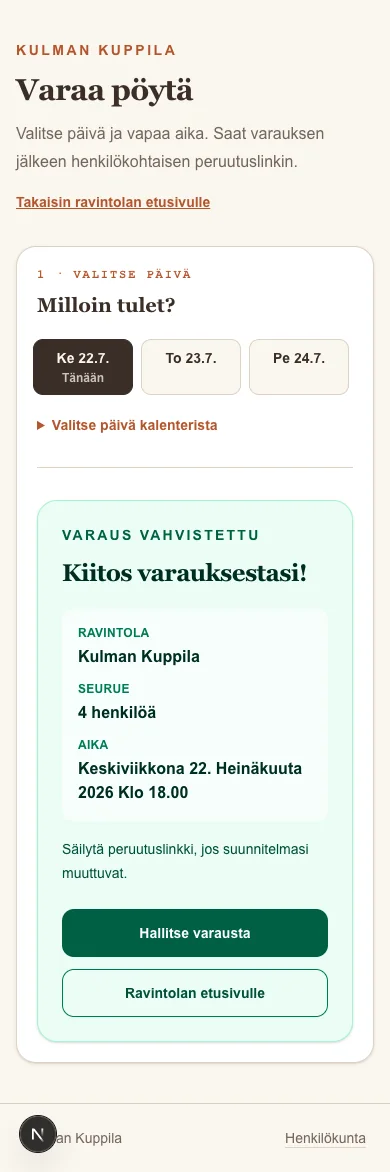
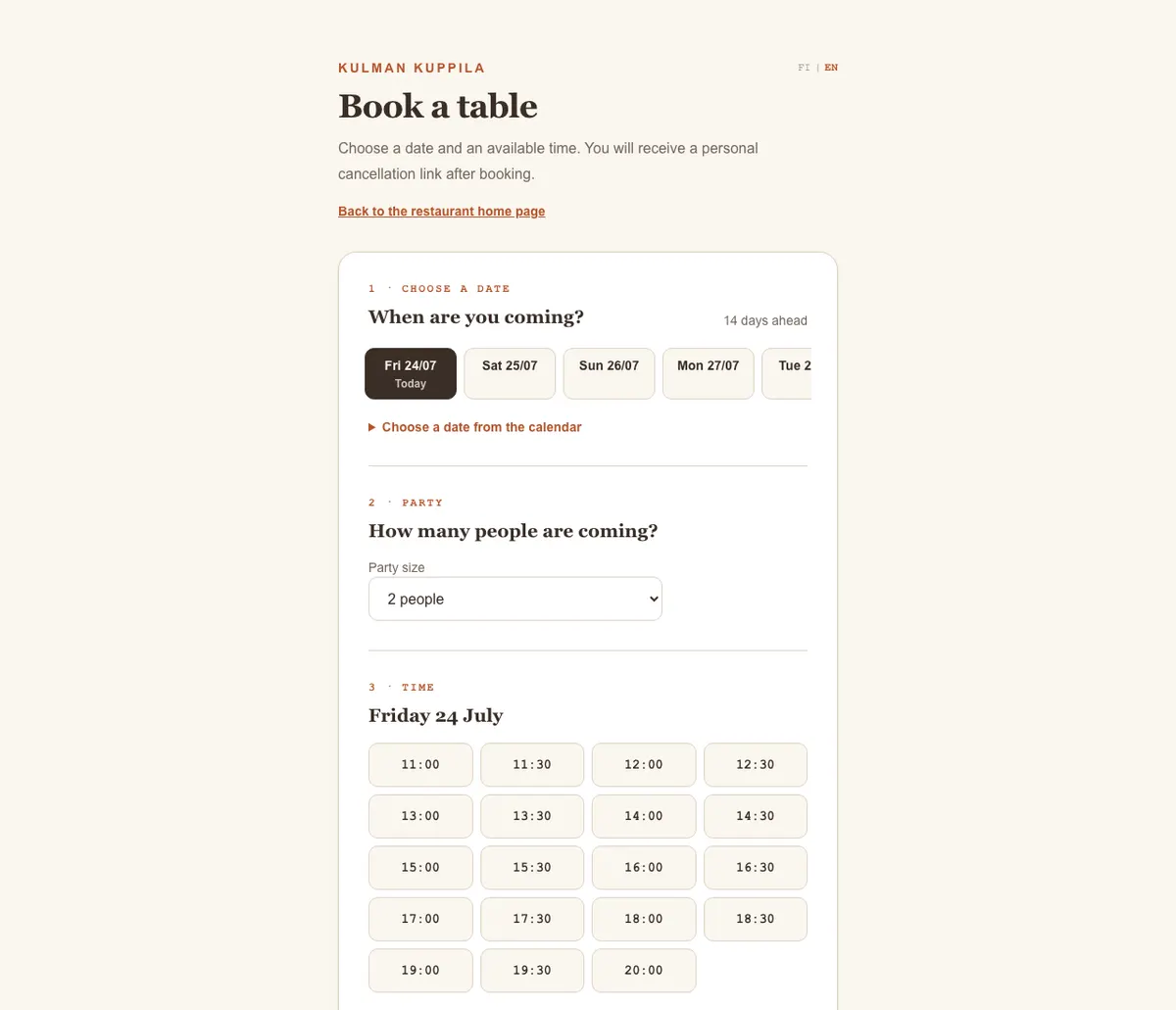
The customer selects Book a table on the restaurant website. The booking proceeds through four visible steps: date, party, time and contact details. Changing the date keeps the booking flow visible, and only available times suitable for the selected party size are shown.
The confirmation shows the restaurant, party size and time. The customer receives a personal Manage booking link and can return to the restaurant home page. If the time was filled before submission, the form keeps the other details and asks the customer to choose a new time.
Who can do this?
- Customer
05
Group inquiries
When the party exceeds the largest online party size in Booking settings, the customer selects the larger-party option or the For a larger party — send a group inquiry link. They enter their contact details, party size, preferred date and time, and any additional information. An inquiry does not confirm a booking yet.
The restaurant receives a notification at the email address in the Website editor’s Contact details section. Staff see new inquiries before handled inquiries in the Group inquiries section on the Bookings page.
How to do it
- 1Open Bookings and find the Group inquiries section.
- 2Contact the customer by email or phone and agree the group booking details.
- 3Select Mark as handled after the contact has been completed.
Who can do this?
- Owner
- Manager
- Waiter
06
Customer language
Finnish is the default language of the booking flow. The customer can switch the form to English with the FI | EN selector; the direct English address ends in /en/varaa. An embedded form opens in English when ?lang=en is added to its address.
The selected language is saved with the booking. The confirmation, reminder, rescheduling email and cancellation page use the same language. The email cancellation link includes the language, and a missing or unknown language safely falls back to Finnish.
Who can do this?
- Customer
- Website administrator
07
Embed the booking form
Embedding lets the same booking form work on another website. Its address is /embed/varaa after the restaurant’s own address.
Add an iframe to the other website with a src such as https://yourrestaurant.vayla.dev/embed/varaa. Give the frame a descriptive title, such as Table booking, and enough height for the form.
Who can do this?
- Website administrator
08
Confirmations and cancellations
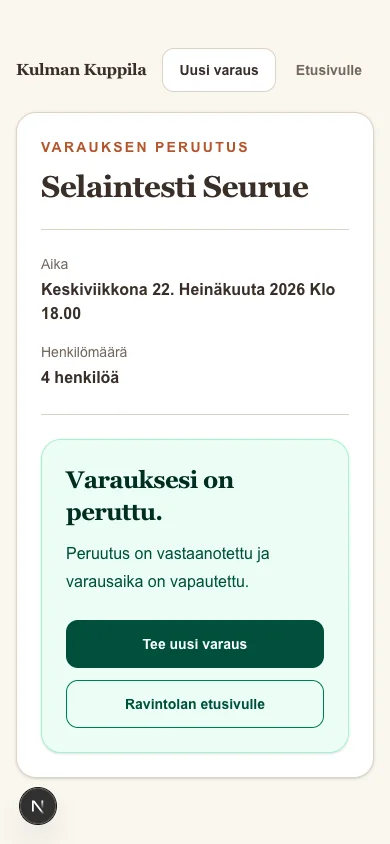
When a customer enters an email address in an online booking, they receive a booking confirmation and cancellation link. The system also sends a reminder before the booking.
The customer can cancel a future pending or confirmed booking from the email link. Cancellation releases the time immediately. Staff then see the booking as Cancelled.
Who can do this?
- Customer
- Owner
- Manager
- Waiter