
01
Open a shift and select a table
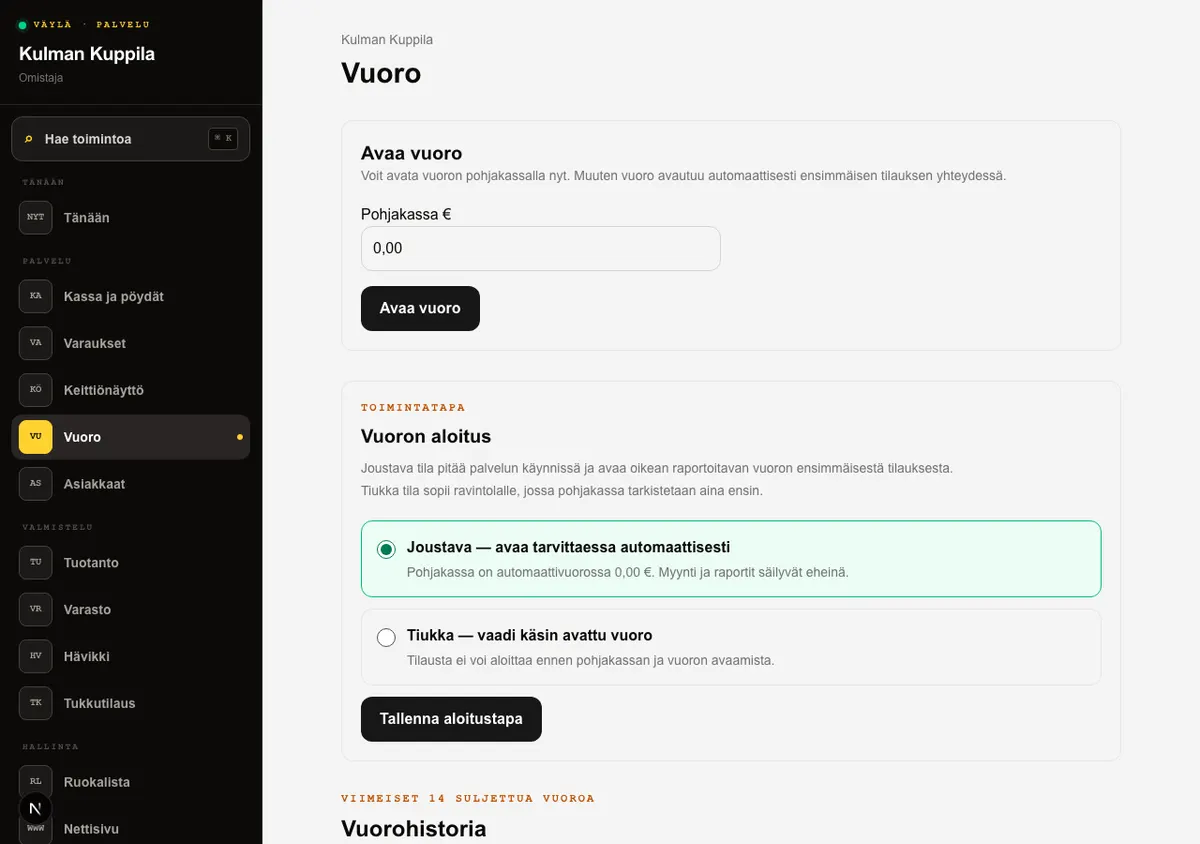
A POS shift links the day’s orders and reports. In automatic mode, you can open a table immediately: if there is no shift, Väylä starts one with zero opening cash and tells you what happened. Customer service does not need to stop for shift setup.
If your restaurant requires an exact opening cash amount before the first order, an owner or manager selects Require the shift to be opened manually in Shift. The table order view then provides a direct Open shift link and returns to the same table afterwards.
Return to POS and select a table on the floor plan. Its colour shows whether it is Available, Reserved, Open order or Bill. Owners and managers can create dining areas, tables and kitchen stations with Edit floor plan.
How to do it
- 1Open POS and select a table. In automatic mode, the order can begin immediately.
- 2If manual opening is enabled, open the provided Shift link, enter the opening cash and select Open shift.
- 3Väylä returns you to the same table to continue the order.
- 4An owner or manager changes the mode under Shift opening method in the Shift view.
Who can do this?
- Owner
- Manager
- Waiter
02
Edit the floor plan and choose station types
An owner or manager uses Edit floor plan in POS to build dining areas and tables and to add the kitchen stations used for product routing in KDS.
Choose Kitchen, Bar or Other for every station. Kitchen and Bar split Sales transactions into dishes and drinks; Other keeps remaining products visible as honest other lines. The station name does not determine the split.
How to do it
- 1Open POS and select Edit floor plan.
- 2Enter a name for the new kitchen station and choose its type.
- 3Select Add station.
- 4Change an existing station’s name or type on its row and select Save.
Who can do this?
- Owner
- Manager
03
Add an order and send it to the kitchen
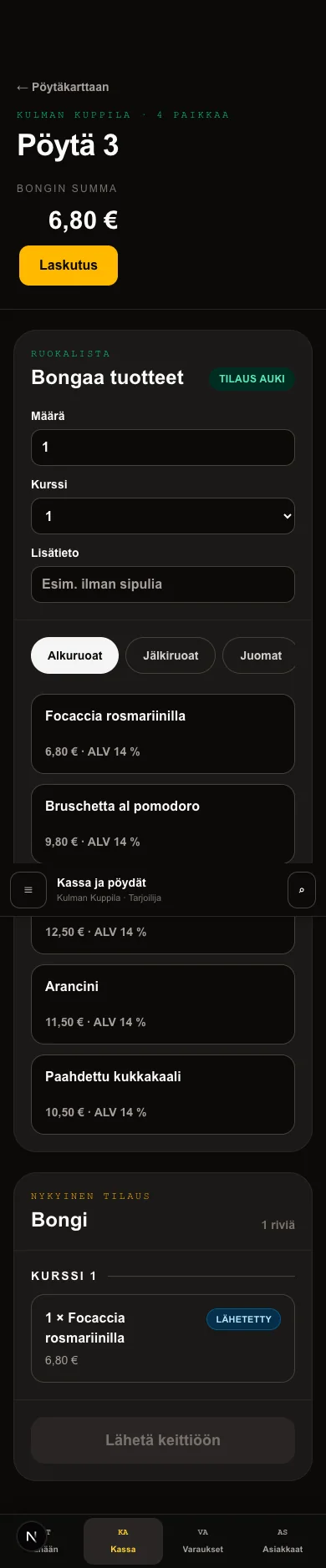
Products are collected on the table order before they move to the kitchen display. Quantities, courses and special requests then reach the kitchen together.
A product appears on the order immediately when selected; the view does not wait for the server response. A Saving label shows the background write. If it fails, the temporary line is removed and Väylä shows the error.
How to do it
- 1Select Open order at the table.
- 2Choose the quantity, course and Additional information when needed.
- 3Add products from the menu. A draft line can still be removed.
- 4Select Send to kitchen. The sent lines appear on the kitchen display.
Who can do this?
- Owner
- Manager
- Waiter
04
Pay the whole table or split the bill
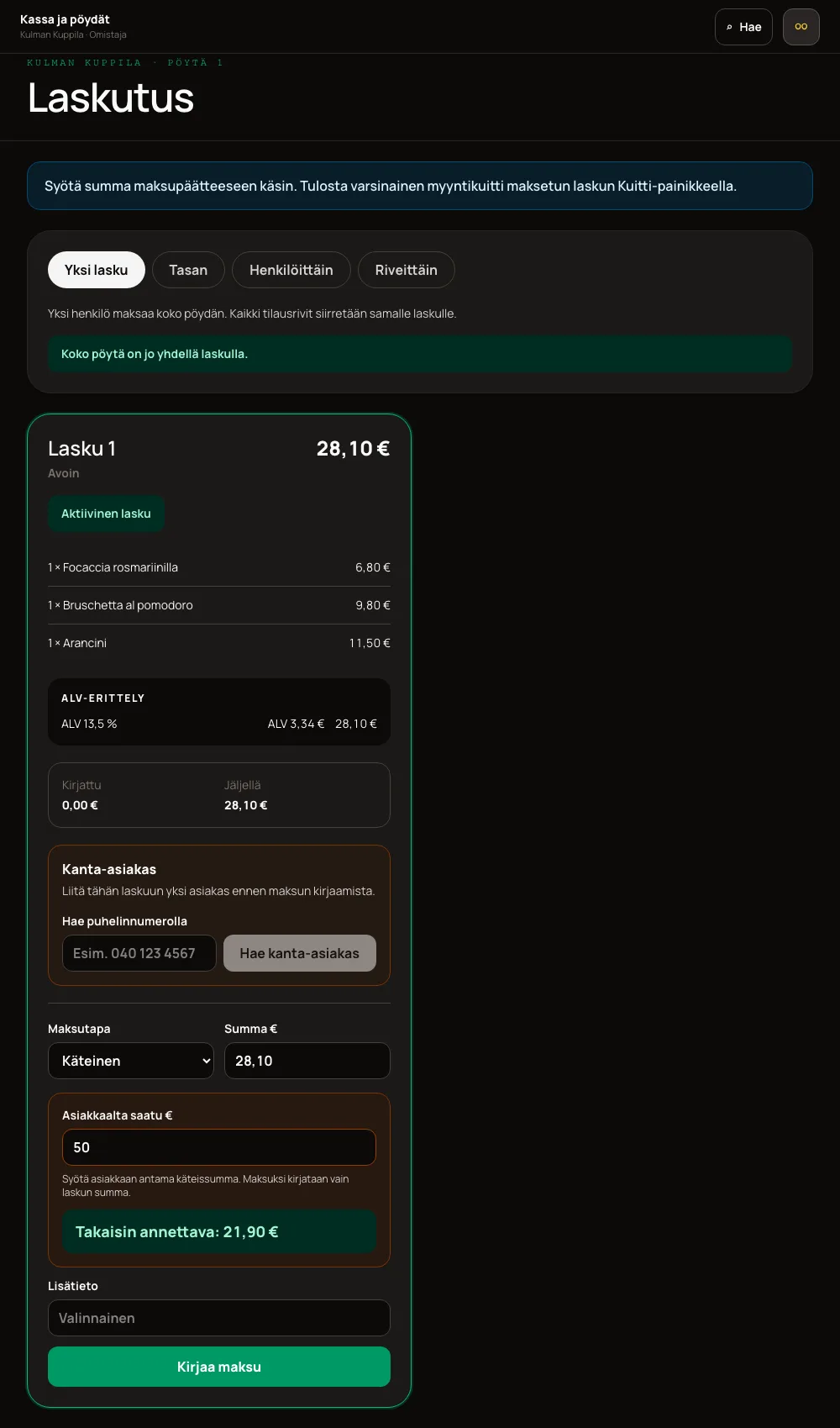
One bill is the default when one person pays for the whole table. Select Create one bill for the whole table to move every unbilled order line onto the same bill.
When needed, split the order Evenly, By person or By line. Choose the method, create the bills and assign lines to the active bill. Empty extra bills cannot be created after every line has already been assigned.
Before the first payment, Undo bill split restores the order to one bill. Once a payment has been recorded, the split is retained for data integrity; an owner or manager uses a payment correction or refund when needed.
On the bill, select a Payment method, enter the Amount € and select Record payment. Payment methods are card, cash, MobilePay, meal benefit and invoice. The payment is recorded in Väylä; a separate payment-terminal payment is completed on the terminal.
For Cash, enter the amount received from the customer, for example 50, under Cash received €. Väylä immediately shows the change due and records only the bill’s remaining amount as the payment.
A recorded payment cannot be edited or deleted. An owner or manager makes a correction as a new negative payment and enters the reason under Additional information.
How to do it
- 1Choose One bill when one customer pays for the whole table.
- 2Choose Evenly, By person or By line only when the payment is genuinely split.
- 3Undo an unfinished split before payment with Undo bill split.
- 4Choose the payment method. For cash, enter the amount received and check the change due.
- 5Select Record payment.
Who can do this?
- Owner
- Manager
- Waiter
- Payment correction: owner or manager
05
Print the customer receipt
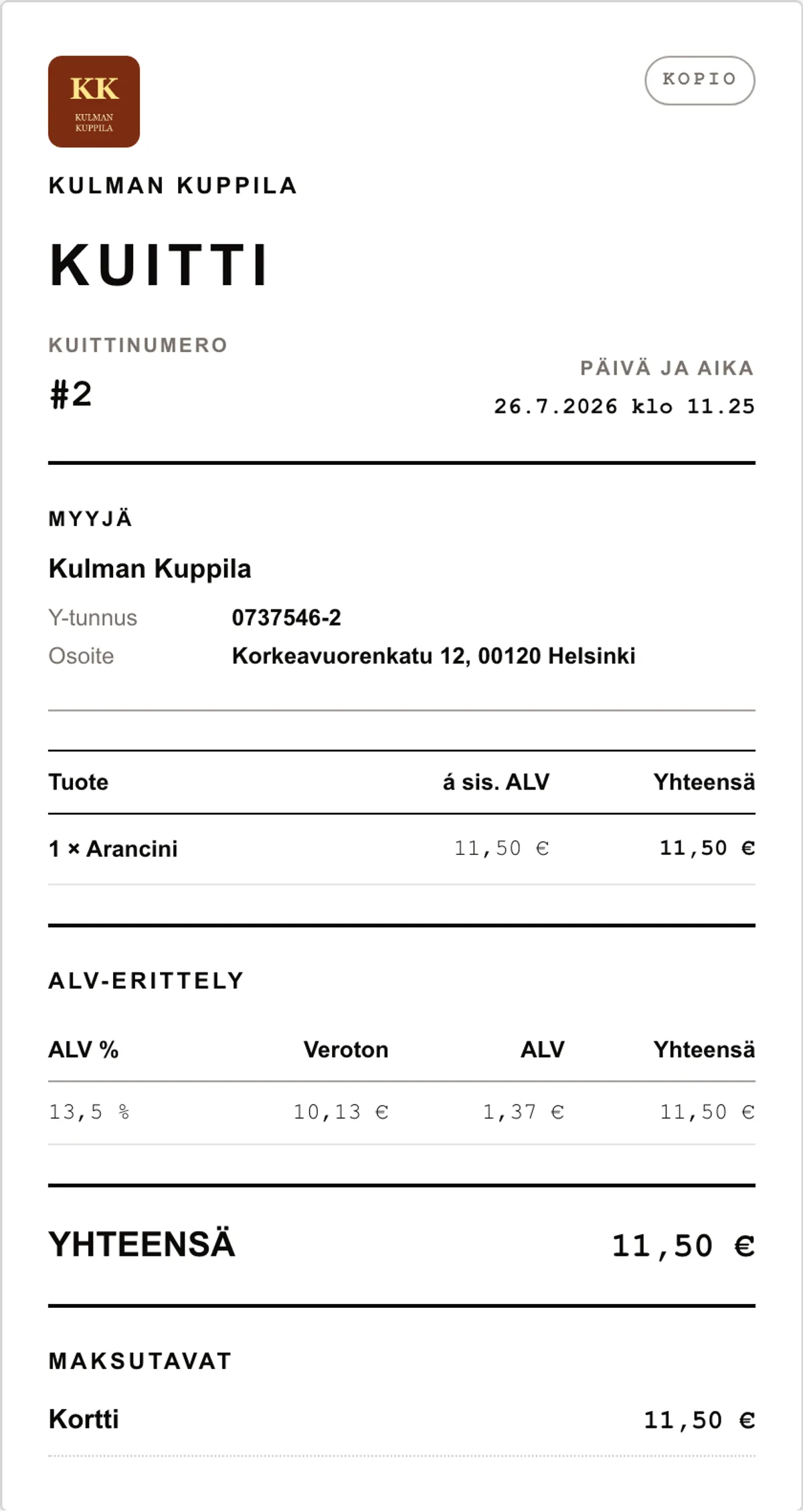
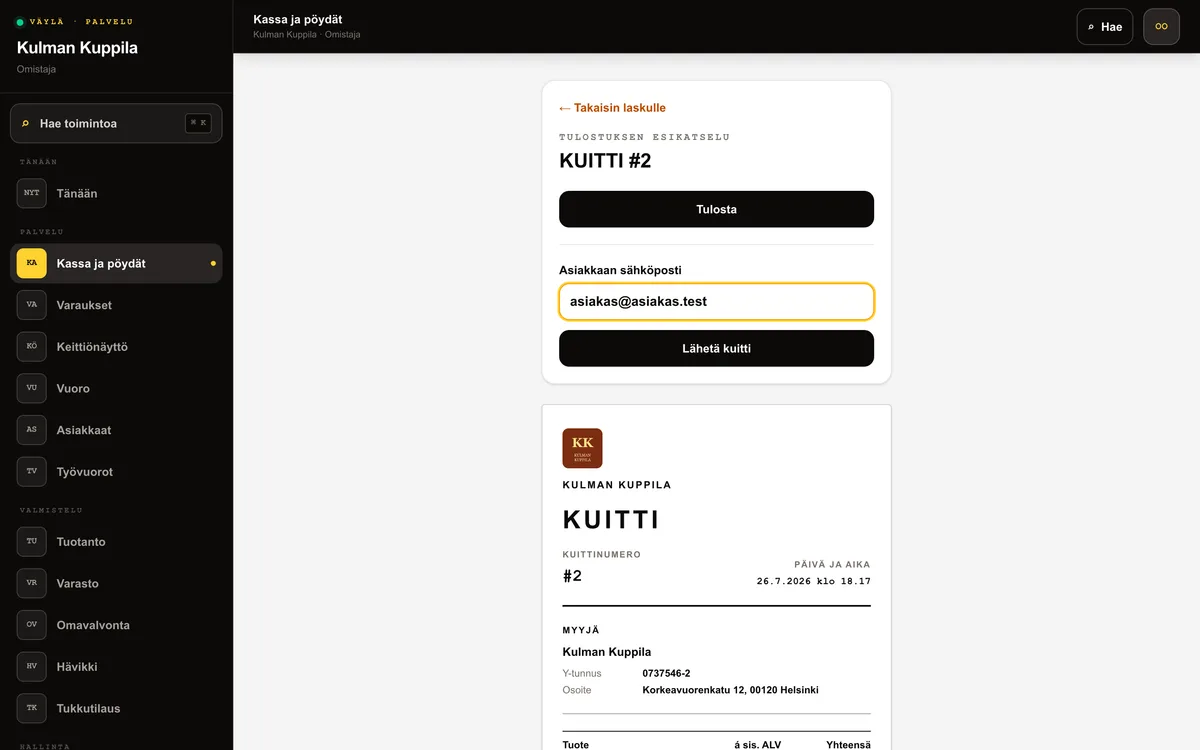
After the bill has been paid in full, select Receipt on the bill. Väylä creates a receipt that meets section 209e of the Finnish VAT Act and includes the seller details, product lines, VAT breakdown, total and recorded payment methods. Print it from the preview with Print. You can also enter the customer’s email address and email the receipt directly from the preview. Later prints keep the same receipt number and are marked COPY.
Who can do this?
- Owner
- Manager
- Waiter
06
Refund a paid bill and print a refund receipt
Only an owner or manager can refund a fully paid bill. Create the original customer receipt first, then open Refund bill, enter a reason with at least three characters and confirm the refund in two steps. Väylä records the reason in the audit log, creates an opposite payment entry for every payment on the bill and marks the bill Refunded.
Refund receipt creates a new REFUND RECEIPT with negative product lines, VAT breakdown, total and payments. It shows the number of the original sales receipt. The sales Receipt button remains available for COPY reprints, but a refund receipt cannot be emailed.
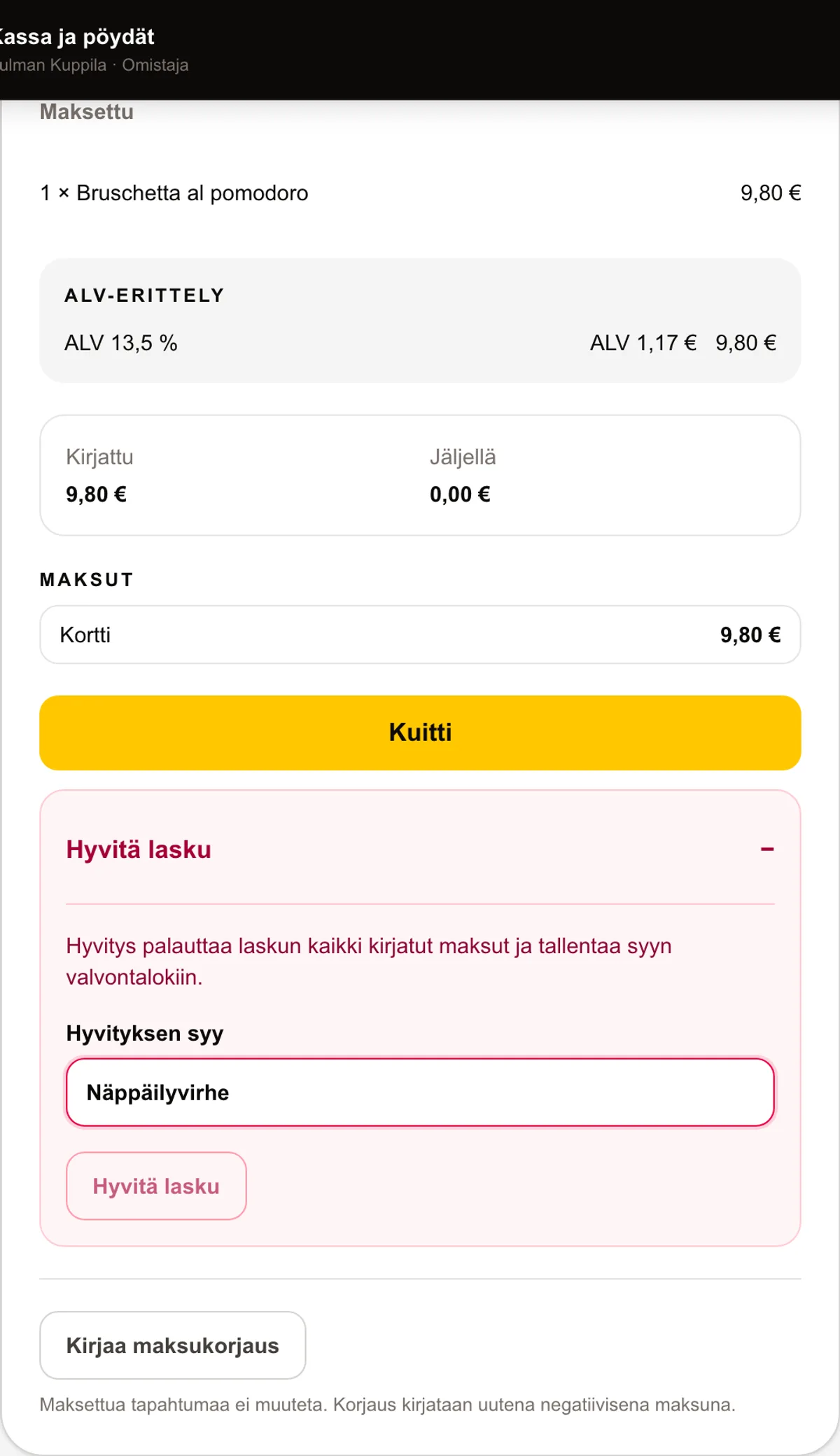
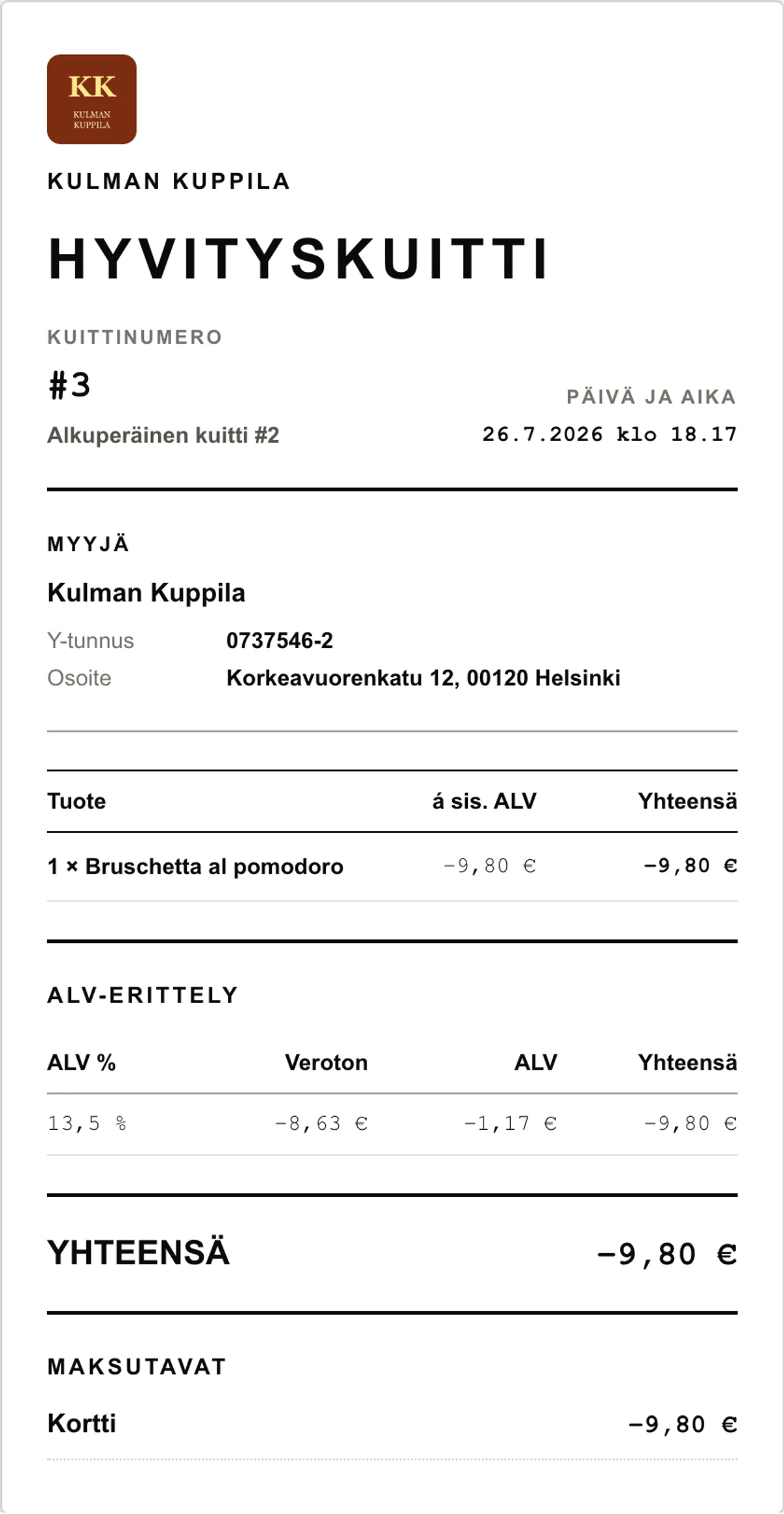
How to do it
- 1Create the original receipt for the paid bill and return to billing.
- 2Open Refund bill, enter the refund reason and select Refund bill.
- 3Check the details and select Confirm refund.
- 4Select Refund receipt, check the original-receipt reference and print the receipt.
Who can do this?
- Owner
- Manager
07
Find and reprint a receipt
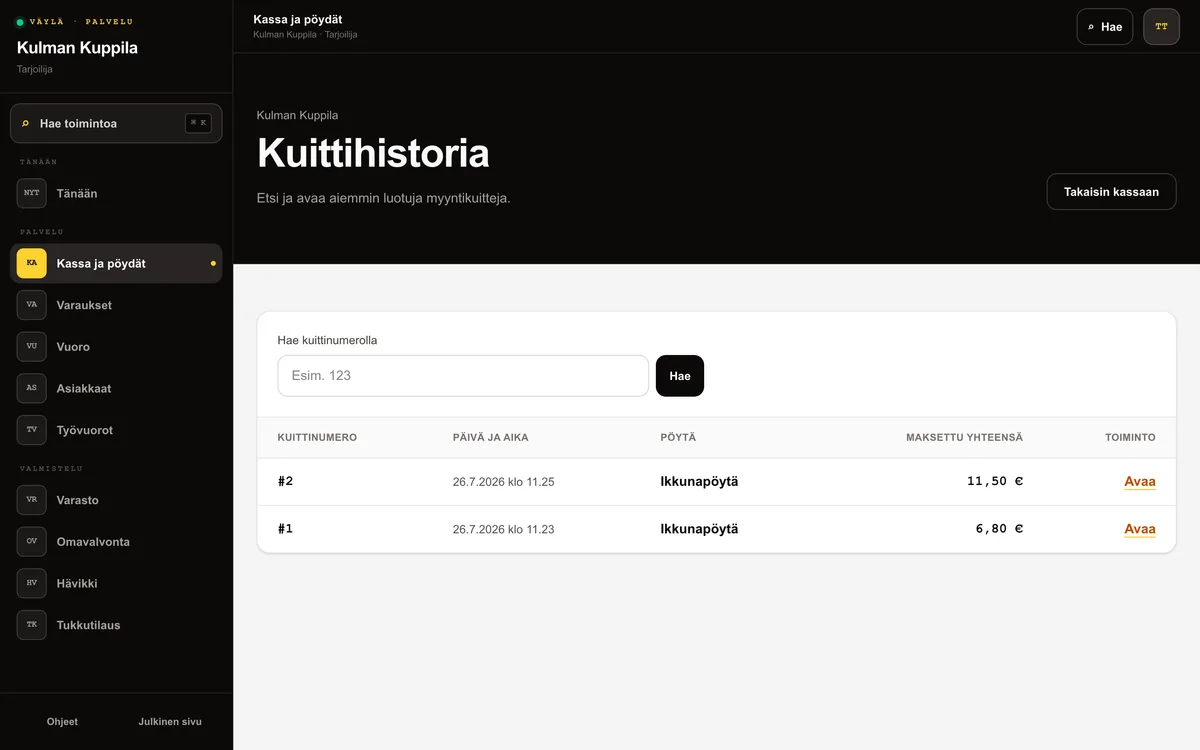
Open Receipts at the top of the POS view. Receipt history shows the 100 newest receipts in receipt-number order. To find one receipt, enter its exact receipt number.
Select Open on the receipt row. The receipt always opens marked COPY because the original was given to the customer when the receipt was issued.
Who can do this?
- Owner
- Manager
- Waiter
08
Create an invoice in POS
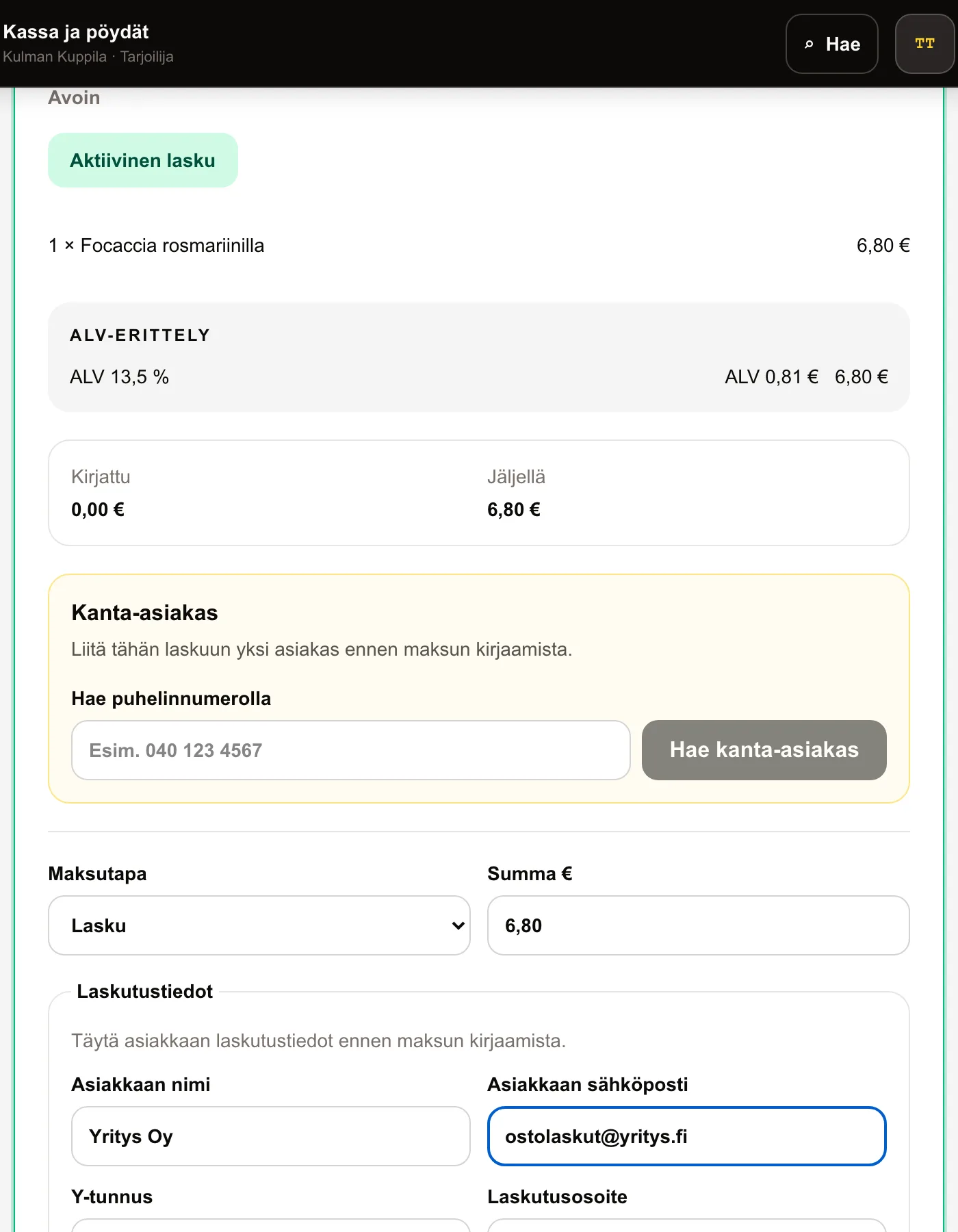
Select Invoice as the payment method and enter the customer’s name and email address. The business ID and billing address are optional. Also choose the payment terms, which determine the invoice due date.
Record payment creates the sales invoice, generates a Finnish reference number and emails the invoice to the customer. The invoice also moves to Receivables for tracking.
How to do it
- 1Select Invoice as the payment method for the open bill.
- 2Enter the customer’s name and email, and add the business ID and billing address when needed.
- 3Choose the payment terms.
- 4Select Record payment.
Who can do this?
- Owner
- Manager
- Waiter
09
Track sales invoices in receivables
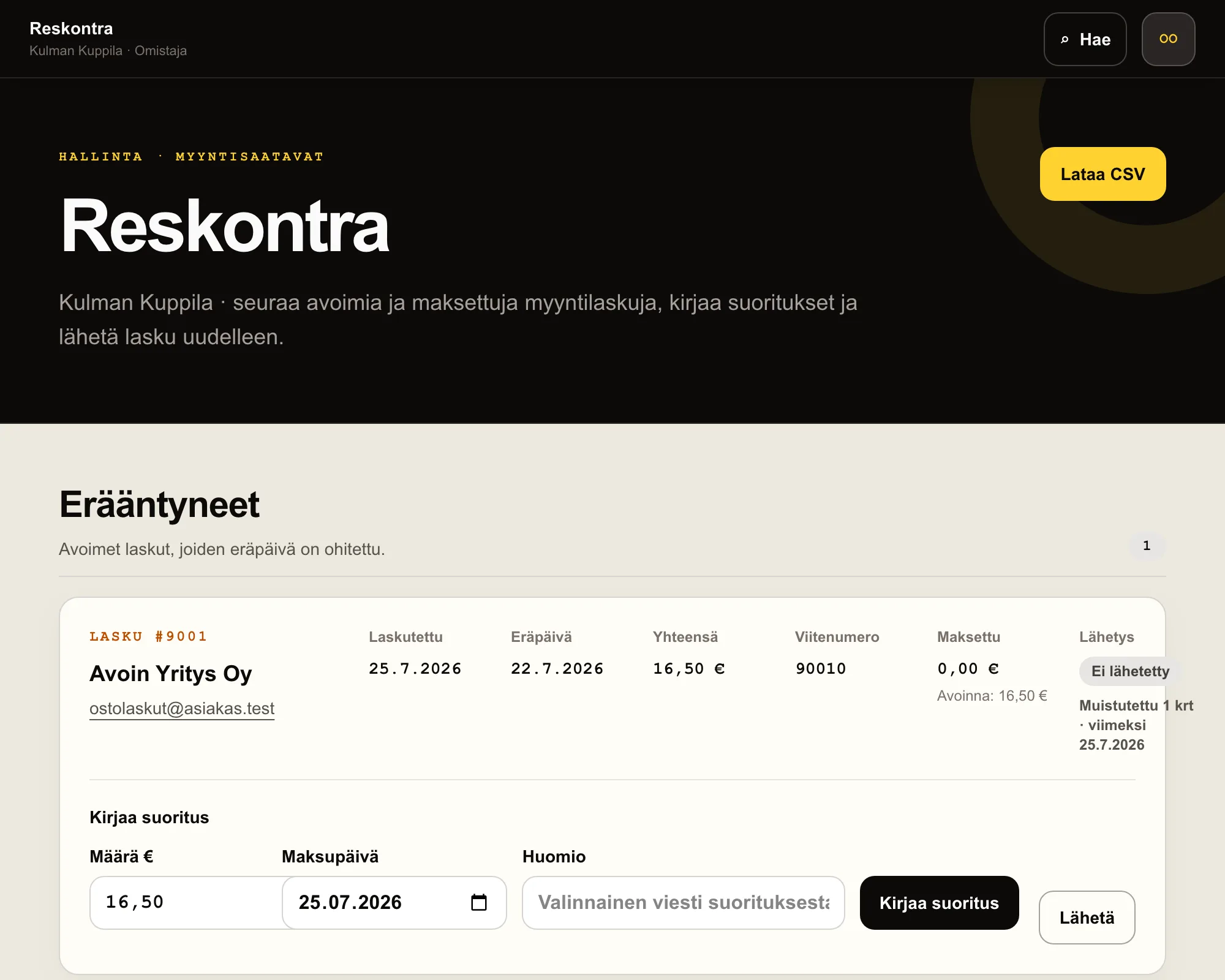
When you choose Invoice as the payment method in POS, Väylä creates an open sales invoice and tries to email it to the customer. The POS bill closes normally, while the receivable remains open in Receivables until recorded payments cover the invoice total.
Receivables separates overdue, open and paid invoices. An owner or manager can record a full or partial payment, choose its payment date and add a note. Open invoice shows a printable invoice with its lines, VAT breakdown and the IBAN and BIC payment details defined in settings. The invoice can also be sent or resent by email, and the CSV export includes both paid and remaining amounts.
An overdue open invoice receives at most two automatic payment reminders at least seven days apart, and the reminder status appears on the invoice row.
How to do it
- 1Open Receivables from Management in the main menu.
- 2Find the invoice under Overdue or Open.
- 3Check the prefilled remaining amount, choose the payment date and select Record payment.
- 4Resend the invoice when needed or download receivables as a CSV file.
Who can do this?
- Owner
- Manager
10
Voids and X and Z reports
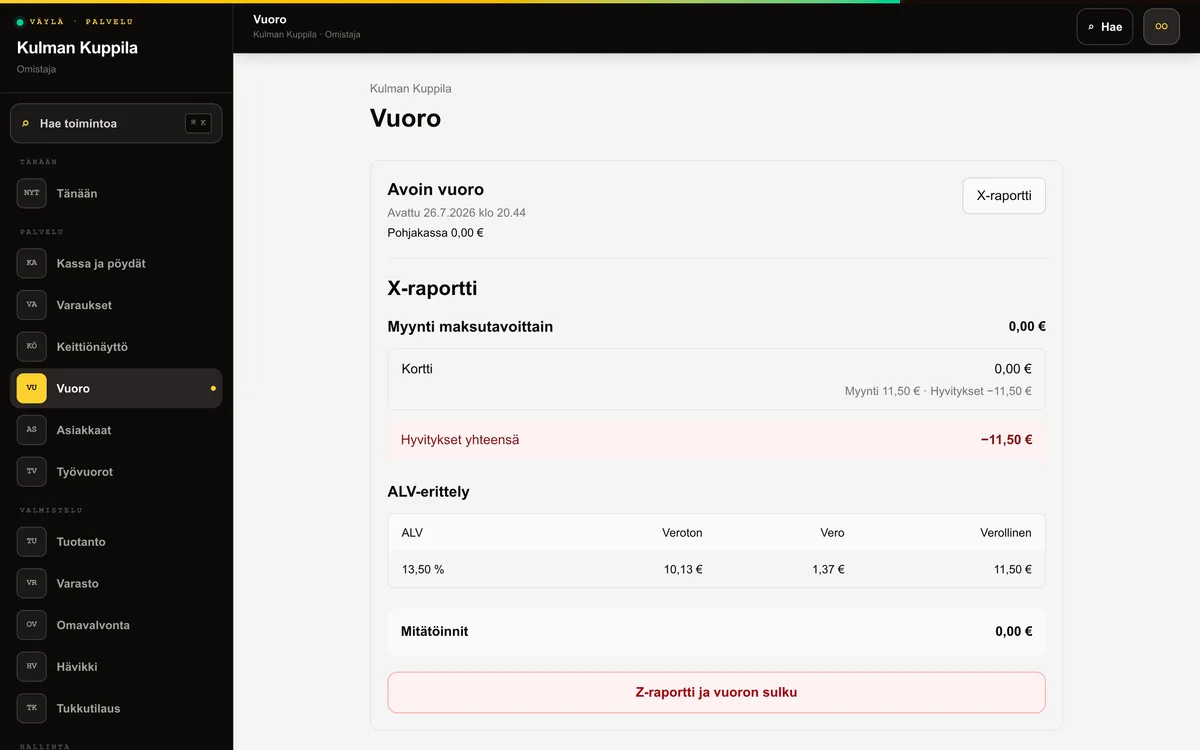
Voiding a sent order line is a controlled action. Only an owner or manager sees Void line (manager). A reason is required and the event is recorded in the audit log.
The X report shows the current open shift without closing it. Only an owner or manager can close the shift with Z report and close shift. The Z report locks the day, and the shift cannot close while orders remain open.
When a shift closes, its Z report is emailed to users with the owner role if the email service is configured. The email includes sales, payment methods, VAT breakdown, voids, the shift duration and the person who closed it. An email failure does not reverse the shift close; the Shift view displays a notice.
An owner or manager can enable or disable the email under Settings → Notifications. It is enabled by default.
Who can do this?
- X report: owner, manager and waiter
- Voids and Z report: owner or manager
11
Monitor sales and shift history
The Sales today card in Today shows owners and managers the total recorded payments and number of payment transactions. It compares the total with yesterday as a percentage. If there were no payments yesterday, the card says that comparison is unavailable.
Shift history shows the 14 most recently closed shifts. For each shift, you can see the closing time, total sales and breakdown by payment method. The closer’s name appears while the user details remain available.
An owner or manager can select Download CSV in Shift history to download an accounting-ready file. By default, it contains the last 30 Helsinki calendar days: date, Z number, total sales, cash and card sales, VAT breakdown, voids and closer. Total sales also includes other recorded payment methods even though they do not have separate columns.
How to do it
- 1Open Today and select Sales today to go to Shift.
- 2Open a shift in Shift history to see payment methods, the VAT breakdown and voids.
- 3Select Download CSV to export the last 30 days of closed shifts to a spreadsheet.
Who can do this?
- Sales today card: owner or manager
- Shift history: owner, manager or waiter
- CSV export: owner or manager