
01
Monitor product and category sales
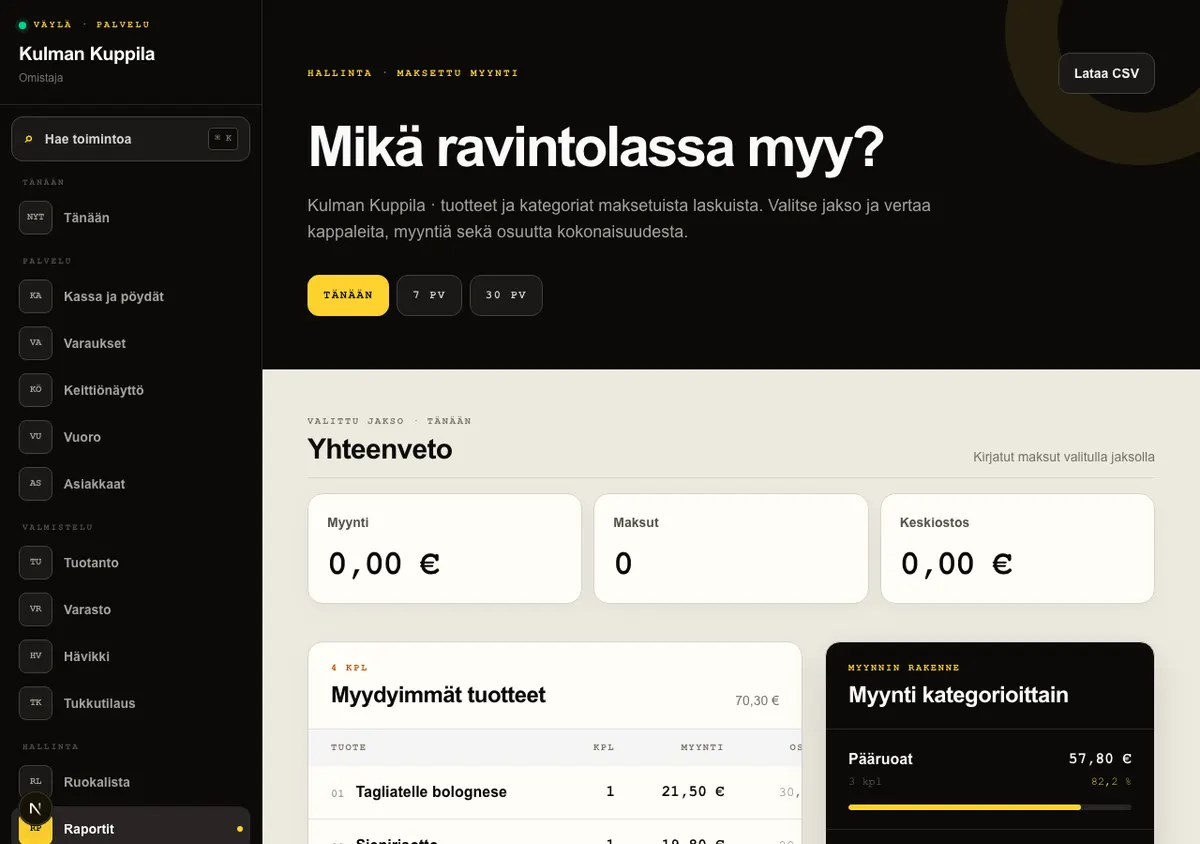
Reports shows recorded payment totals, number of payments and average purchase for Today, 7 days or 30 days. Top-selling products and categories are calculated from fully paid bills, so products on an open bill are included only after the bill is paid.
The product name and price come from the bill line at the time of sale. The category is the product’s current menu category. Share shows the product’s or category’s percentage of the total paid product-line sales displayed in the report.
Every Monday, owners receive an email summary of the previous week using the restaurant’s enabled data: sales and VAT, bookings and no-shows, waste cost, and open and overdue receivables.
How to do it
- 1Open Reports from Management in the main menu.
- 2Select Today, 7 days or 30 days.
- 3Compare the summary, top-selling products and sales by category.
Who can do this?
- Owner
- Manager
02
Reconcile sales by transaction
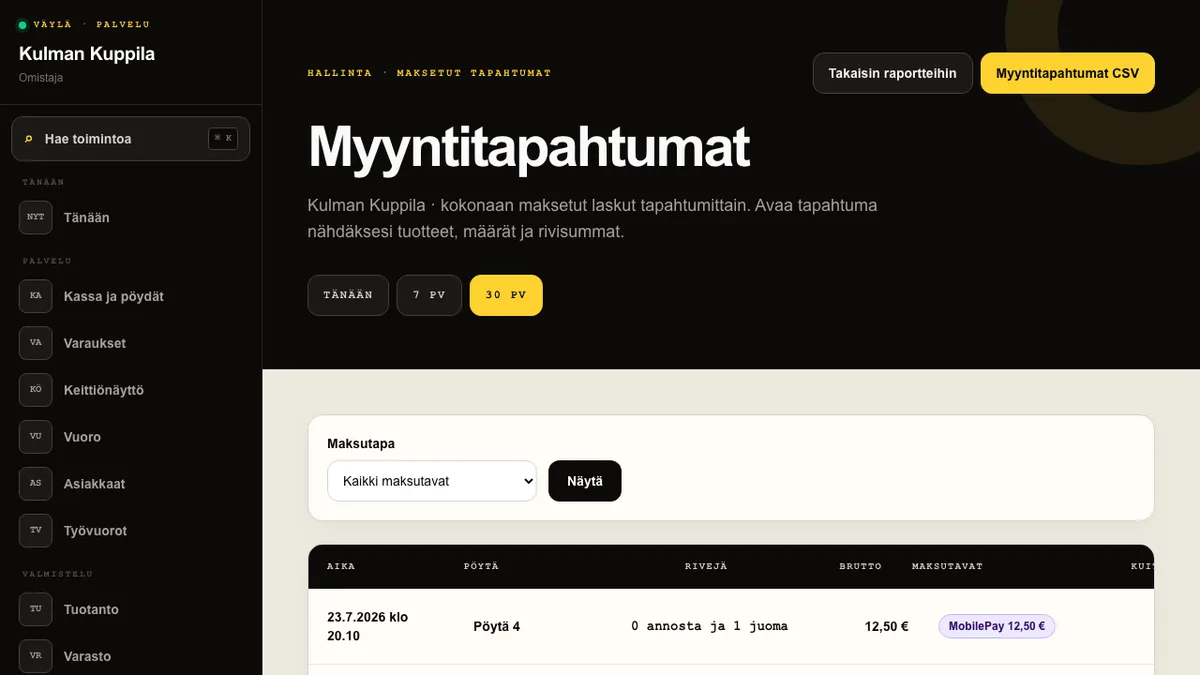
Sales transactions lists fully paid bills for the selected period from newest to oldest. Each transaction shows the latest payment time, table, number of dishes and drinks, gross total, payment methods with their amounts, and the staff members who recorded the payments. When no products are classified to Kitchen or Bar stations, the view keeps the plain line count.
Open a transaction to review the product names captured at the time of sale, quantities assigned to the bill and rounded line totals. Filter the list to card, cash, MobilePay, meal benefit or invoice transactions. A POS invoice payment appears here as a sales transaction; track its open receivable and payments separately in Receivables.
Dishes come from quantities routed to Kitchen stations and drinks from quantities routed to Bar stations. Other stations, missing products and missing stations remain visible as separate other lines. Quantities assigned to split bills are summed and rounded once to the nearest integer. Sales transactions CSV adds columns for dishes, drinks and other lines after the line count.
How to do it
- 1Open Reports and select Sales transactions.
- 2Select Today, 7 days or 30 days and filter by payment method when needed.
- 3Open a transaction and reconcile its gross total with its product lines and recorded payments.
- 4Select Sales transactions CSV to export the transactions to a spreadsheet.
Who can do this?
- Owner
- Manager
03
Download product sales as a CSV file
Product sales CSV exports the selected period’s products in the same order as the report. The file contains each product’s name, quantity, euro sales and percentage share. Amounts and decimals use Finnish formatting, and the file is protected against spreadsheet formula injection.
The product sales file only contains product sales from paid bills. Use VAT breakdown CSV for VAT details for the selected period.
How to do it
- 1Select the required period in Reports.
- 2Select Product sales CSV.
- 3Open the file in a spreadsheet or pass it on for further processing.
Who can do this?
- Owner
- Manager
04
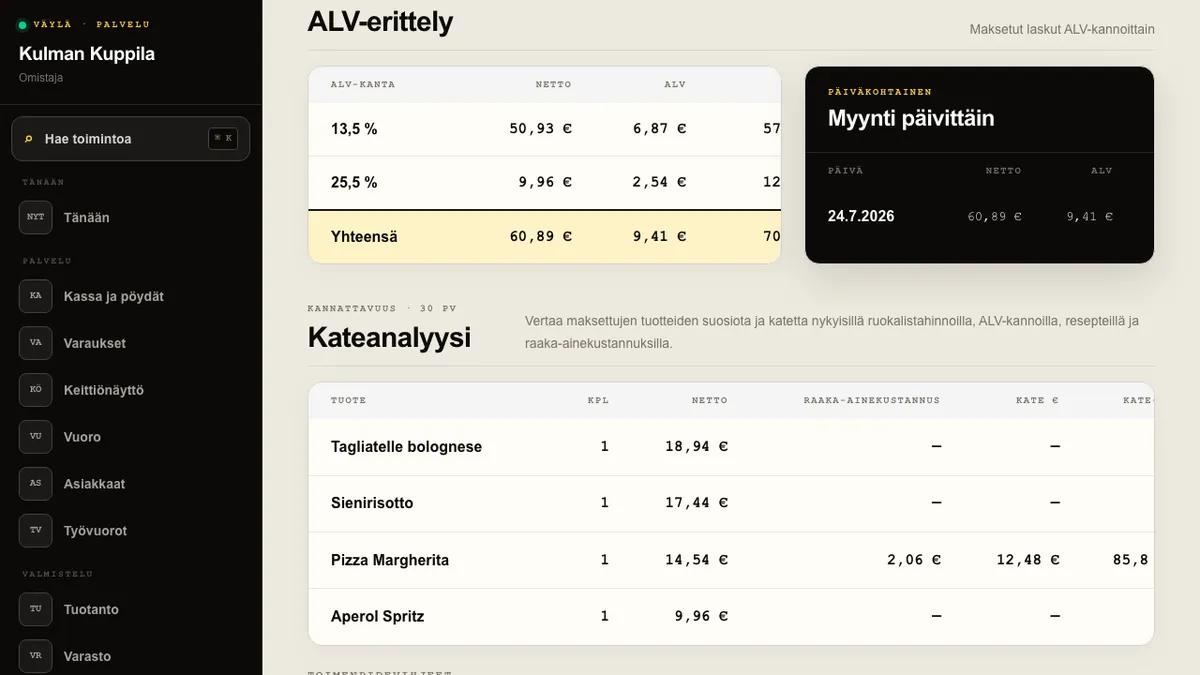
Provide the VAT breakdown to your accountant
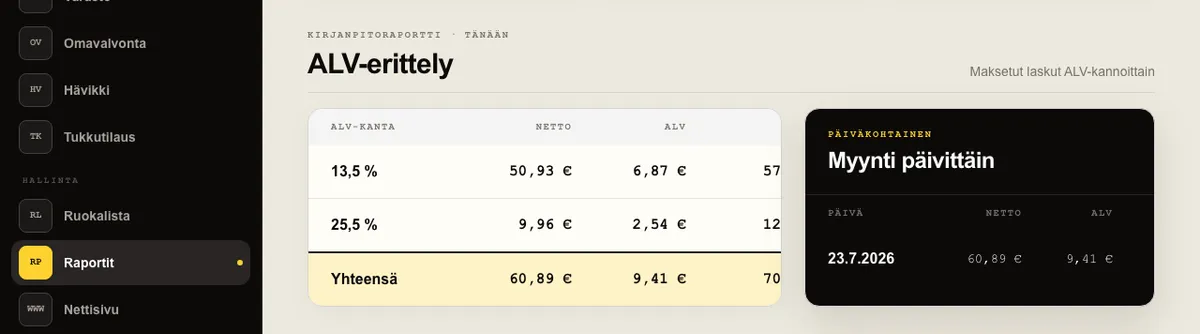
The VAT breakdown groups net sales, VAT and gross sales by VAT rate from fully paid bills in the selected period. The daily table helps reconcile sales for the period.
VAT breakdown CSV is a period breakdown for your accountant, not completed bookkeeping or a tax return. The restaurant is responsible for the accuracy of its bookkeeping, entries and returns, and for reconciling the report with its other accounting records.
How to do it
- 1In Reports, select the period that matches the accounting period.
- 2Check net, VAT and gross amounts by VAT rate and the daily totals.
- 3Select VAT breakdown CSV and deliver the file to your accountant using the agreed method.
Who can do this?
- Owner
- Manager
05
Export daily postings to accounting
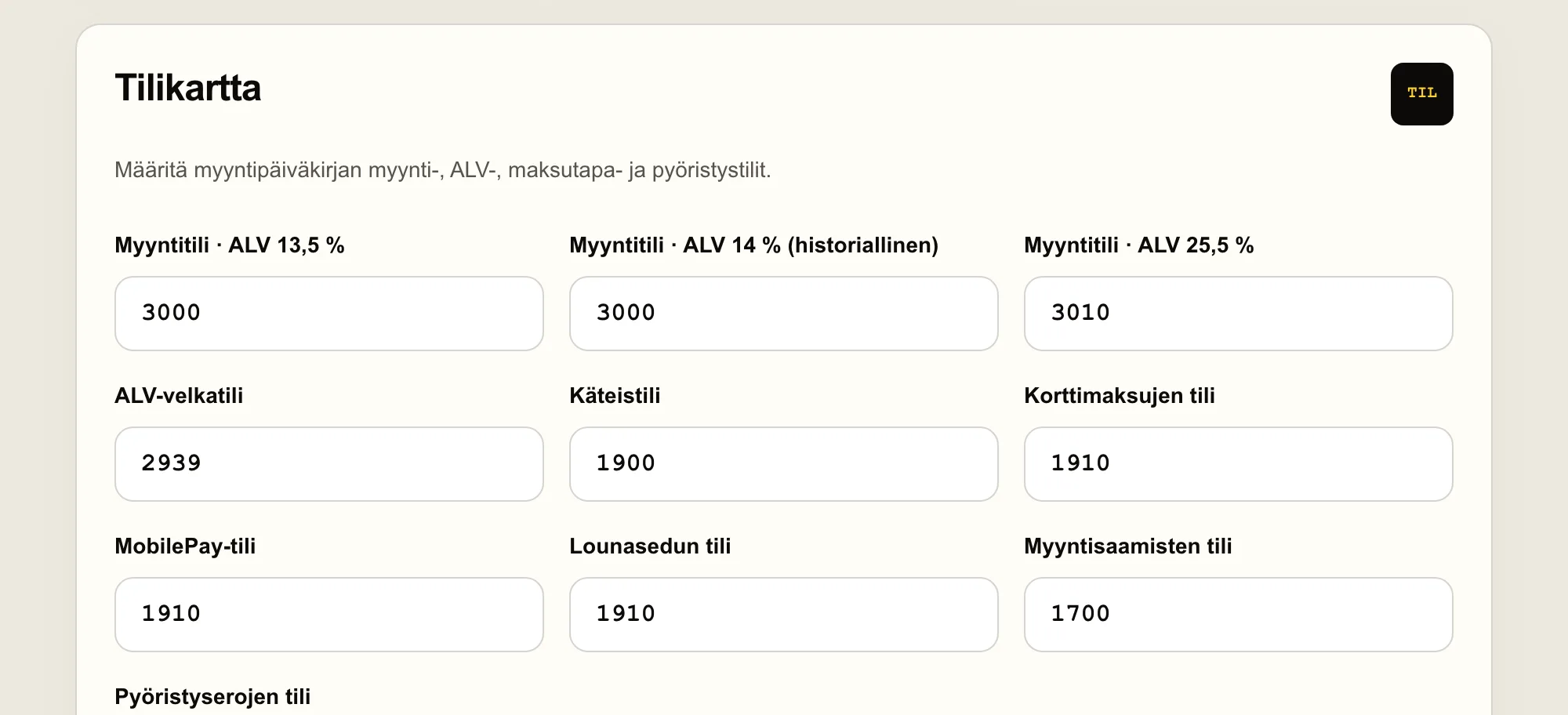
The daily sales journal creates debit and credit rows for a selected range of up to 92 days. Payments are posted to the configured payment-method accounts, invoice sales to accounts receivable, net sales to the VAT-rate sales account and VAT to the VAT liability account.
Product sales are assigned to the day when the bill’s last payment was recorded. Väylä posts any cent difference between payments and bill lines to the configured rounding account so that every day balances. The export is posting material for your accountant, not completed bookkeeping; the restaurant is responsible for the chart of accounts, postings and reconciliations.
How to do it
- 1As an owner, first review every account number under Chart of accounts in Settings and save any changes.
- 2Open Reports and select the start and end dates for the Daily sales journal.
- 3Select Download sales journal and reconcile the CSV’s daily debit and credit totals.
- 4Deliver the CSV to your accountant using the agreed method.
Who can do this?
- Edit chart of accounts: owner
- Export daily sales journal: owner or manager
06
Identify menu stars and opportunities
Menu engineering combines paid product-line quantities for the selected period with the product’s current menu price, VAT rate, recipe and ingredient costs. The ingredient cost of the sold portions is deducted from net revenue to show margin in euros and as a percentage.
A product is popular when its quantity share is at least 70 percent of the equal-share average across products. Its margin percentage is compared with the average of products that have complete recipe and cost data. This classifies products as stars, workhorses, puzzles and burdens.
If a recipe or even one ingredient cost is missing, Väylä does not guess the margin. The product appears under Incomplete data until you complete its recipe and costs in Inventory.
How to do it
- 1Select the period to review in Reports.
- 2Compare each product’s net revenue, ingredient cost, margin and class.
- 3Use the action hints for each class and complete missing data in Inventory.
- 4Select Menu engineering CSV to continue working with the data in a spreadsheet.
Who can do this?
- Owner
- Manager