
01
Items and stock levels
An inventory item is an ingredient or product whose stock is tracked. Target stock is the desired quantity, and the reorder point determines when the item needs replenishment.
An owner or manager adds an item under Add to inventory. Enter a name, unit, target stock, reorder point and, optionally, cost and Herkku product code. The stock level is calculated from the item’s transactions, which you can open with Transactions.
An owner or manager can select Download CSV under Items to export every item’s current calculated stock, targets, reorder points and unit costs. The file does not contain transaction history or reasons for waste entries.
The Inventory value summary shows owners and managers the value of positive stock at current unit costs and provides a separate CSV file for the valuation.
How to do it
- 1Select Download CSV under Items.
- 2Open the downloaded file in a spreadsheet or send it to your accountant.
Who can do this?
- Manage items: owner or manager
- View stock: owner, manager and waiter
- CSV export: owner or manager
02
Stock count
A stock count corrects the system stock to match the quantity counted on the shelf. Regular counting keeps recipe deductions and order suggestions useful.
Find the item, enter the actual quantity in Record counted stock and select Record. The difference appears as a Stock count line under the item’s Transactions.
Who can do this?
- Owner
- Manager
- Waiter
03
Quick receipt
The Receipt form on an individual item adds a positive quantity directly to calculated stock without a wholesale order. You can include an optional note of no more than 200 characters.
Enter the received quantity on the item card and select Record receipt. The entry appears with a Receipt badge under the item’s Transactions.
Who can do this?
- Owner
- Manager
- Waiter
04
Waste
A waste entry deducts a spoiled or unusable quantity from stock and makes the reasons visible.
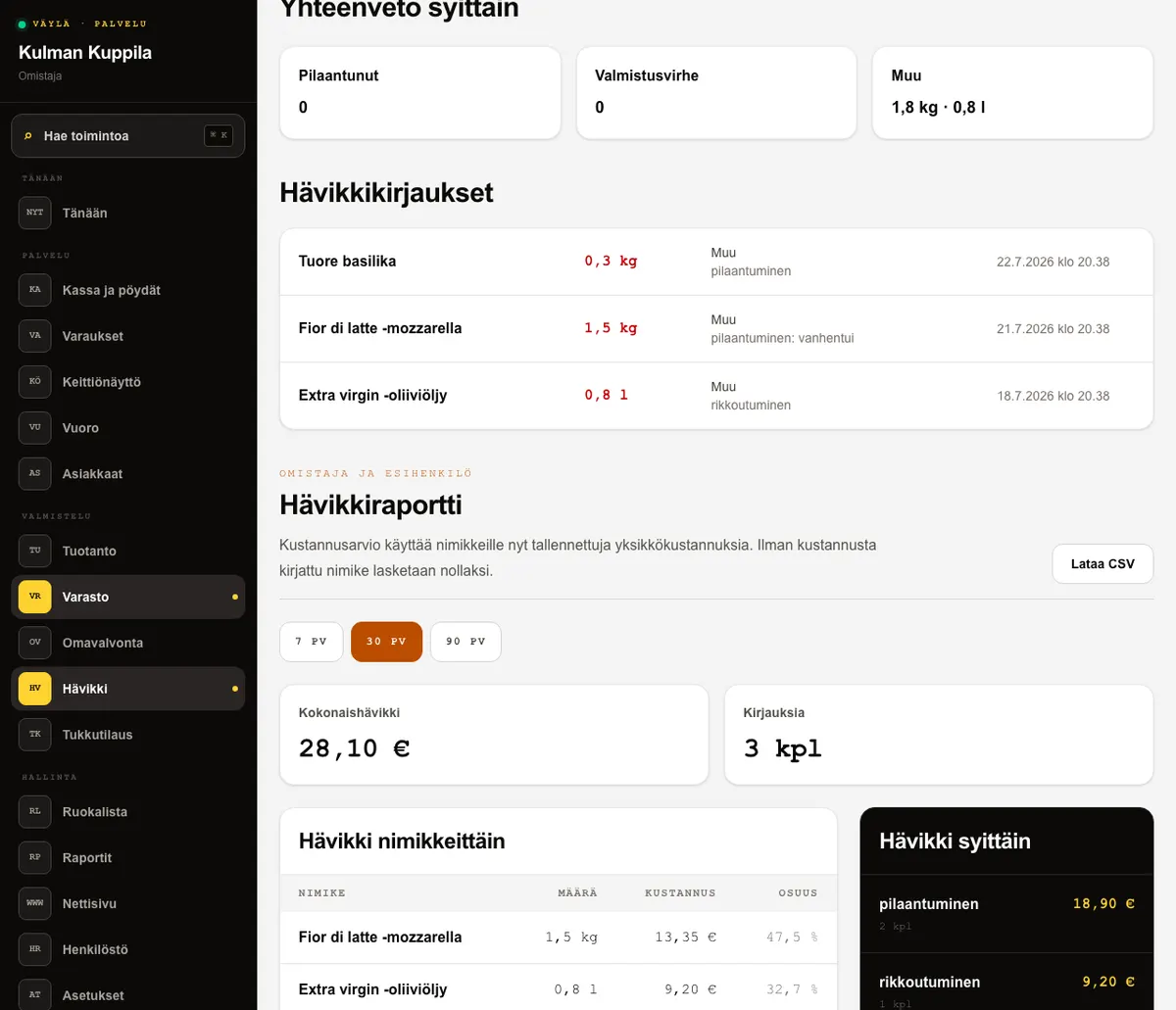
Open Waste at the top of Inventory. Select the item, quantity and reason: Spoiled, Production error or Other, and add details when needed. The page then shows a summary and entries for the last 30 days.
Who can do this?
- Owner
- Manager
- Waiter
05
Waste report
At the bottom of Waste, an owner or manager can review estimated costs by item and reason for 7, 30 or 90 days and download an item-level CSV file.
The estimate uses the item’s currently saved unit cost. If no cost is saved, waste appears in quantities and entries but its estimated cost is €0. The report improves cost visibility, but it is not an accounting inventory valuation and does not retain the purchase price at the time of the transaction.
How to do it
- 1Open Inventory and then Waste.
- 2Select 7 days, 30 days or 90 days in the Waste report.
- 3Review total cost, items and reasons, or select Download CSV.
Who can do this?
- Owner
- Manager
06
Order suggestions
An order suggestion highlights items whose stock is below the reorder point. The suggested quantity replenishes stock towards the target level.
Open Order suggestion, review and adjust quantities, then select Move to cart. Only items linked to a Herkku product code can be moved. The order is first created as a draft, then reviewed and submitted in Wholesale orders.
Who can do this?
- Owner
- Manager