
01
Search the Herkku catalogue
Wholesale orders shows the products and customer prices available to the restaurant’s Herkkuconttori account. The same view also shows ordering schedules and possible delivery dates.
Open Wholesale orders. Filter the Product catalogue by name, product code or category and select Add to cart. If the customer account has not yet been connected, the view tells you to contact support.
Who can do this?
- Owner
- Manager
- Waiter
02
Review and submit the cart
In the cart, you can change quantities, remove lines and select the requested delivery date. The estimated total excludes products whose price is confirmed separately.
After reviewing the order, select Submit order to Herkkuconttori and confirm. A submitted order can no longer be edited. Väylä protects the submission so that retrying after a network error does not create the same order twice.
Who can do this?
- Owner
- Manager
03
Track order history
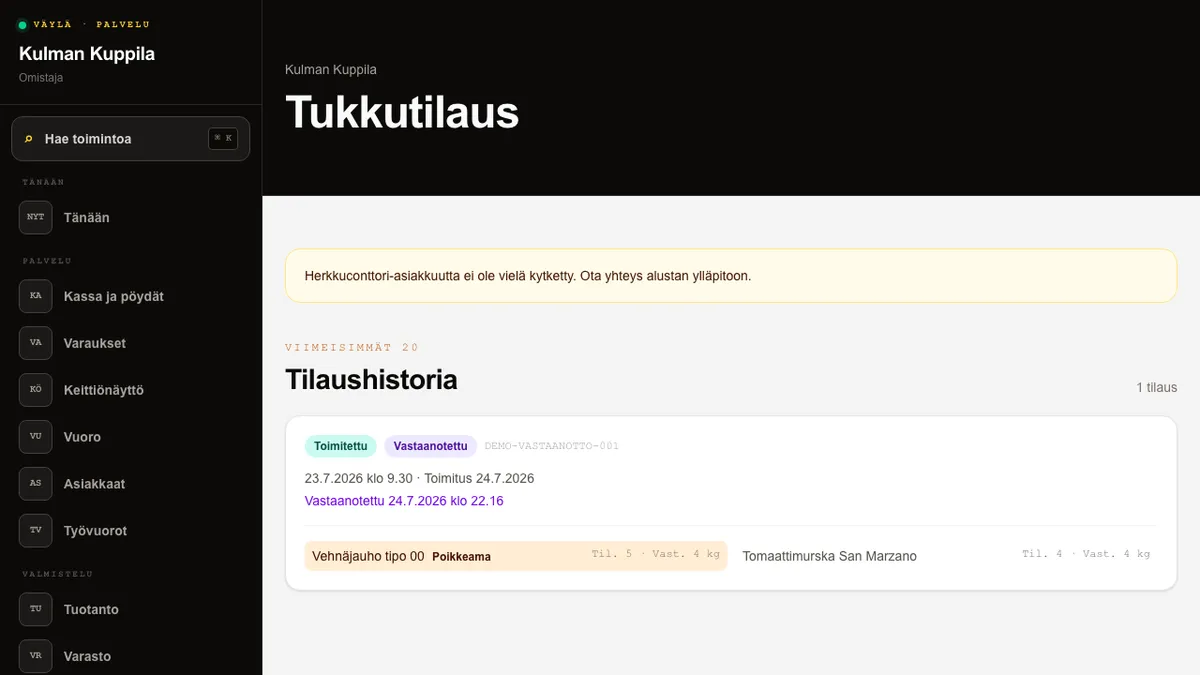
Order history shows the 20 latest orders, their lines, delivery date and progress from draft to delivered or rejected.
Select Order again to move the lines from an earlier order into a new cart. Always check prices, quantities and the delivery date before submitting again.
Who can do this?
- Owner
- Manager
- Waiter
04
Receive a delivery
When an order is Delivered, open its Record receipt form. Every received quantity is prefilled with the ordered quantity, but you can correct missing, extra or entirely undelivered amounts before recording.
Recording adds positive received quantities to inventory items whose Herkku product code matches the order line. Deviating lines are highlighted, and the order gets a Received badge and timestamp in Order history. The same order cannot be received twice.
How to do it
- 1Open a Delivered order in Order history.
- 2Check every Received quantity and adjust deviations.
- 3Select Record as received.
- 4Check the Received badge and, when needed, the inventory Transactions.
Who can do this?
- Owner
- Manager
- Waiter