
01
Create a production recipe
A production recipe describes which inventory item is produced, which ingredients are used and which stages are required. It makes consumption and batch progress repeatable.
Open Production and Recipes. Enter a name, output, batch size and instructions. Add ingredients with their quantities per batch and add stages in the correct order. A production station and duration can be selected for each stage. Select Add recipe.
Who can do this?
- Owner
- Manager
02
Plan and start a batch
The Production plan brings together the day’s batches and suggests production when an output item’s inventory stock falls below its reorder point.
An owner or manager can select Create batch on a suggestion or complete the New batch form. Start a planned batch with Start batch. Starting deducts the recipe ingredients from inventory and assigns a batch number. If stock is insufficient, the system warns you before Start anyway.
Who can do this?
- Create batch: owner or manager
- Start: owner, manager or kitchen
03
Use the weekly template
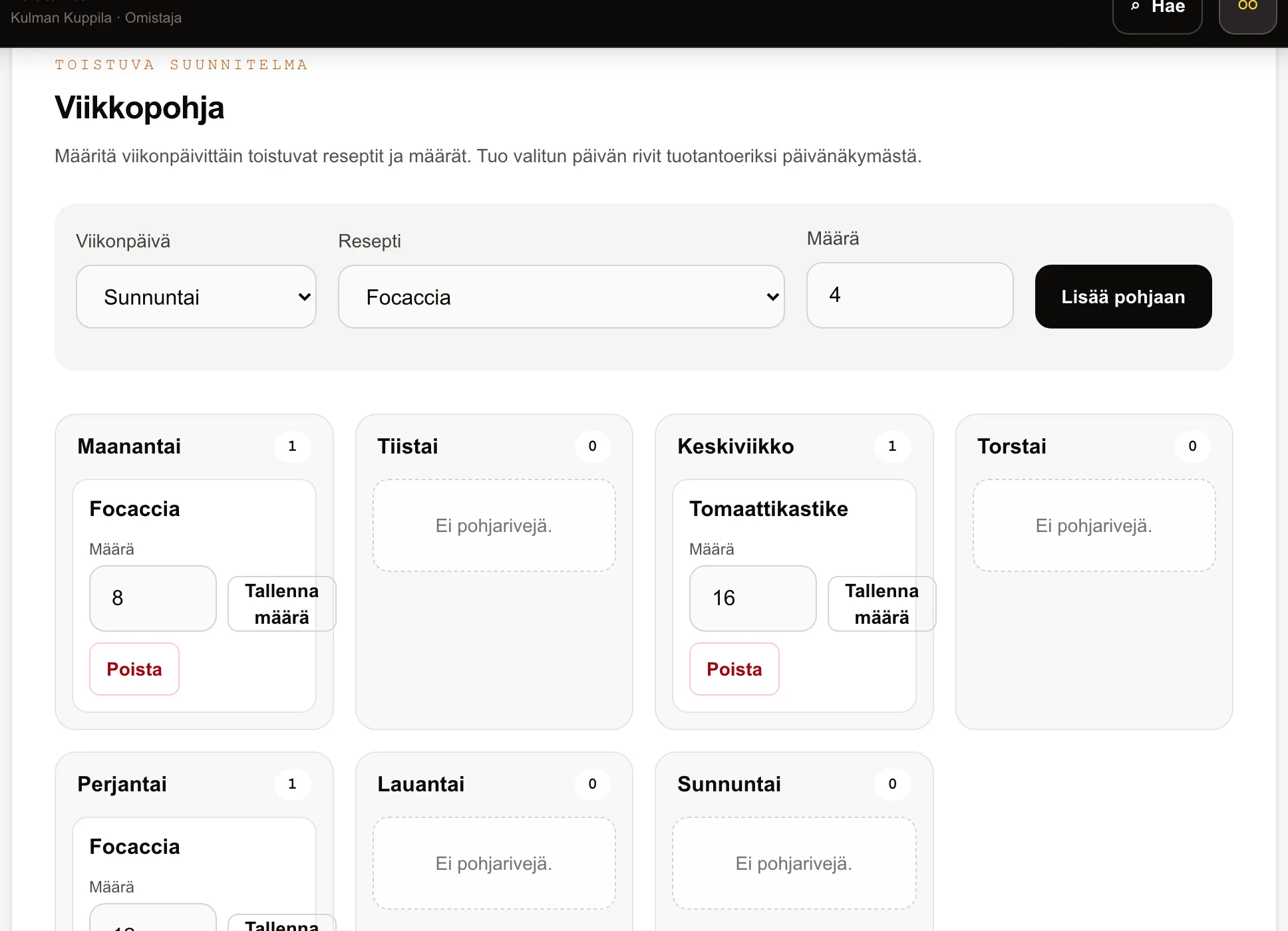
The weekly template stores recurring recipes and quantities by weekday. An owner or manager can add, edit and remove rows in the Weekly template section of the Production plan.
Select a date in the production plan and select Import template. Väylä creates the batches saved for that weekday and skips recipes that already have any batch on the same date, so importing again does not create duplicates.
Who can do this?
- Owner
- Manager
04
Print the daily production list
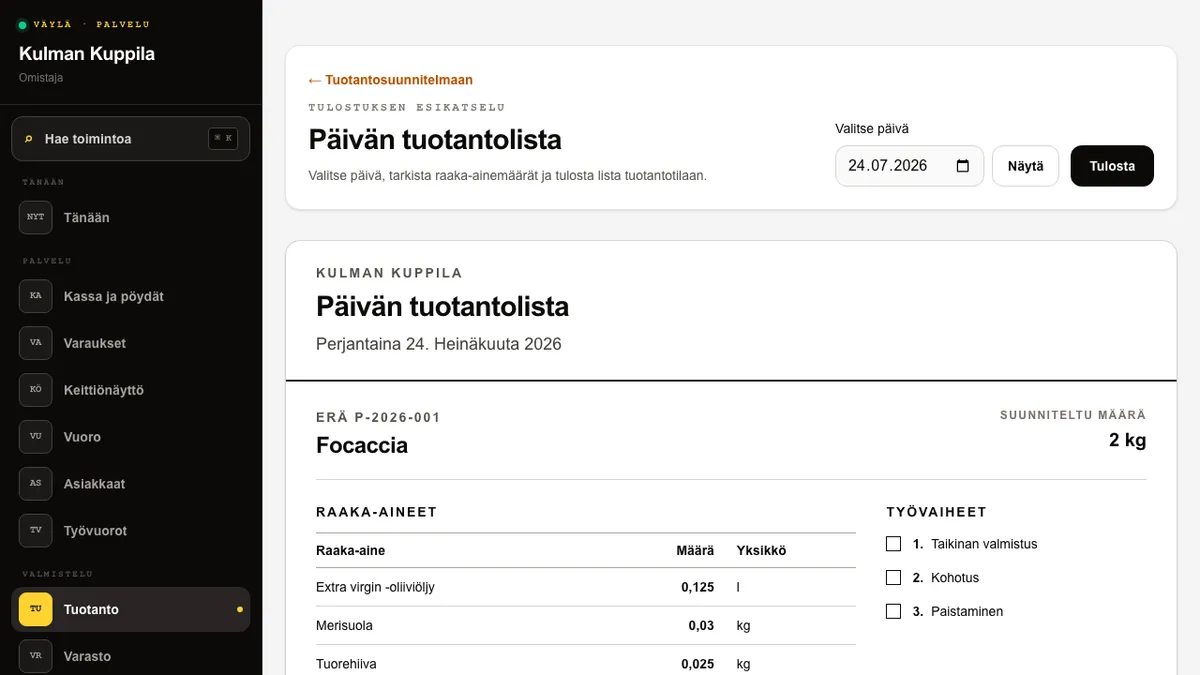
Production’s Print list brings the selected day’s batches together on paper. Each batch shows its planned quantity, scaled ingredient requirements, empty stage checkboxes and a signature line.
Open Production and Print list. Select the day, review the preview and select Print. The printout contains only the production list, without Väylä’s sidebar or mobile navigation.
How to do it
- 1Open Print list from Production.
- 2Select the day to print and select Show.
- 3Review the batches, ingredient quantities and stage order.
- 4Select Print and choose a printer in the browser print dialog.
Who can do this?
- Owner
- Manager
- Waiter
- Kitchen
05
Production queue and completion
The Production queue shows started batches and their next stage. The station selector filters tasks assigned to the selected workstation.
Select Start stage and, when the work is finished, Complete stage. When every stage is complete, enter the Actual quantity and Best before date, then select Record completion. The actual quantity is added to the output item’s inventory stock.
Who can do this?
- Owner
- Manager
- Kitchen
06
Yield and traceability
Yield compares the actual quantity with the planned quantity. It helps identify batch-size differences so the recipe or working method can be adjusted.
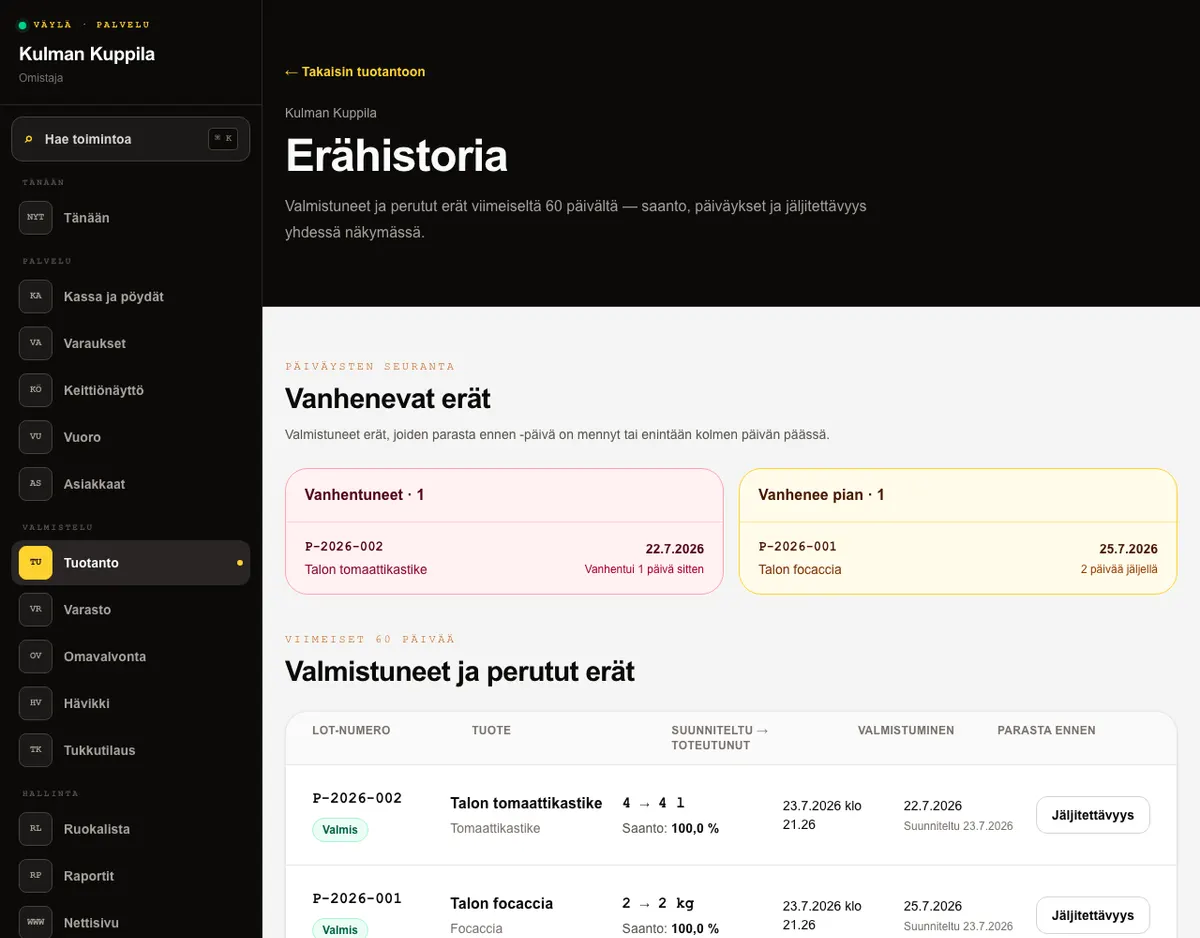
Open Batch history. It shows completed and cancelled batches from the last 60 days, including yield, dates and lot numbers. Select Traceability on a batch to see consumed ingredients, waste and stage times. If an in-progress batch is cancelled, its ingredient consumption is returned to stock and the reason remains in history.
Who can do this?
- Owner
- Manager
- Waiter
- Kitchen
07
Monitor expiring batches
Open Batch history and check Expiring batches before starting the day’s production. The red list shows completed batches whose best-before date has passed. The yellow list shows batches expiring today or within the next three days.
Each row shows the lot number, product, best-before date and number of days. Open the row to view traceability for the same batch. The Expiring soon card appears on Today when there are batches to monitor; a red card means at least one batch has already expired.
Expiry monitoring helps plan the order in which batches are used and manage waste. The restaurant remains responsible for assessing whether products are fit for use and for taking the actions required by its food-safety plan.
Who can do this?
- Owner
- Manager
- Waiter
- Kitchen