
01
Plan shifts in bulk
The Shifts view divides the calendar into the three-week periods used in the hospitality collective agreement. Owners and managers can move to the previous, current or next period and see every employee at the location in one grid.
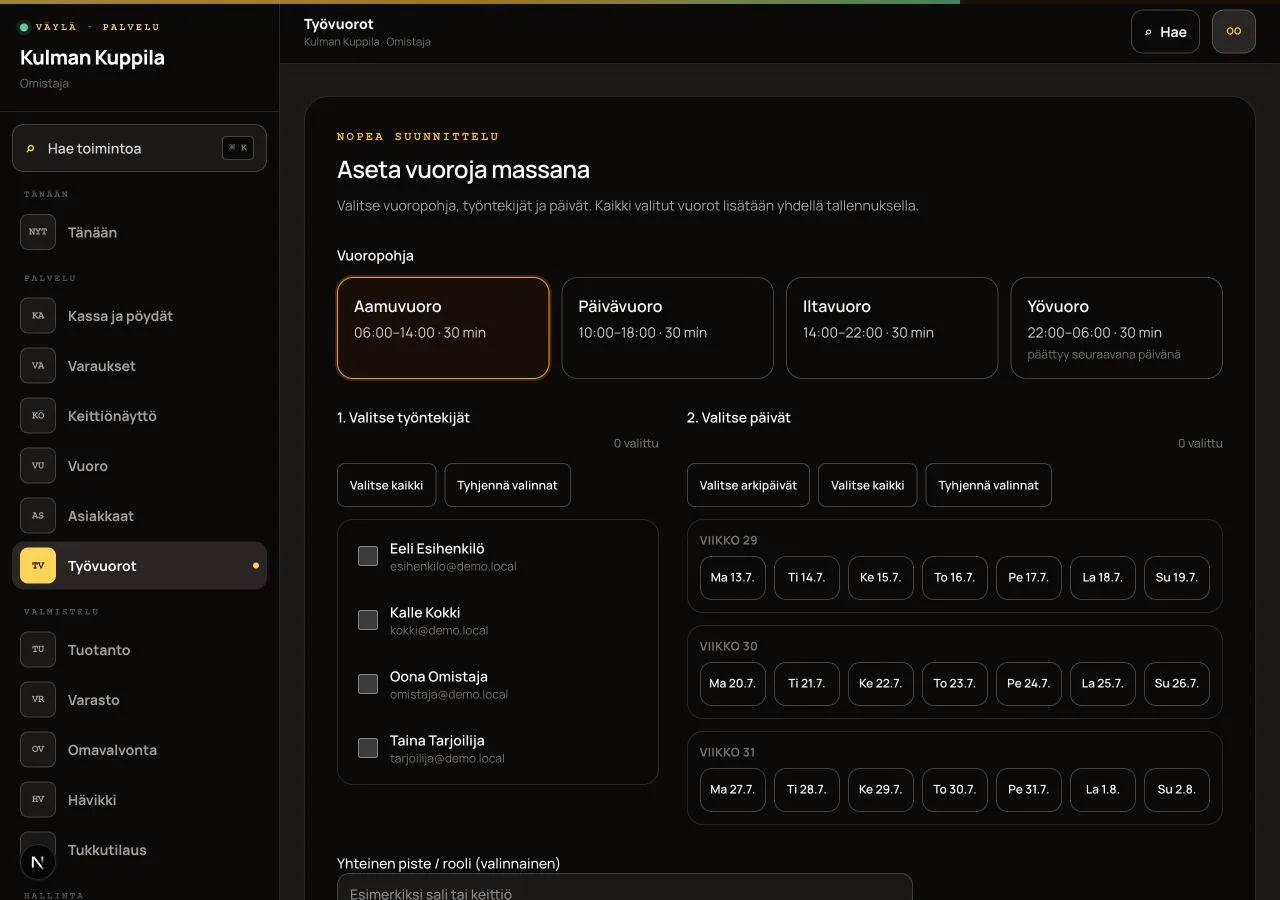
Quick planning assigns the same shift template to several employees and dates in one save. Select, for example, Morning shift, the employees and weekdays. Väylä validates the whole batch before saving and does not create a partial batch if any selected shift overlaps.
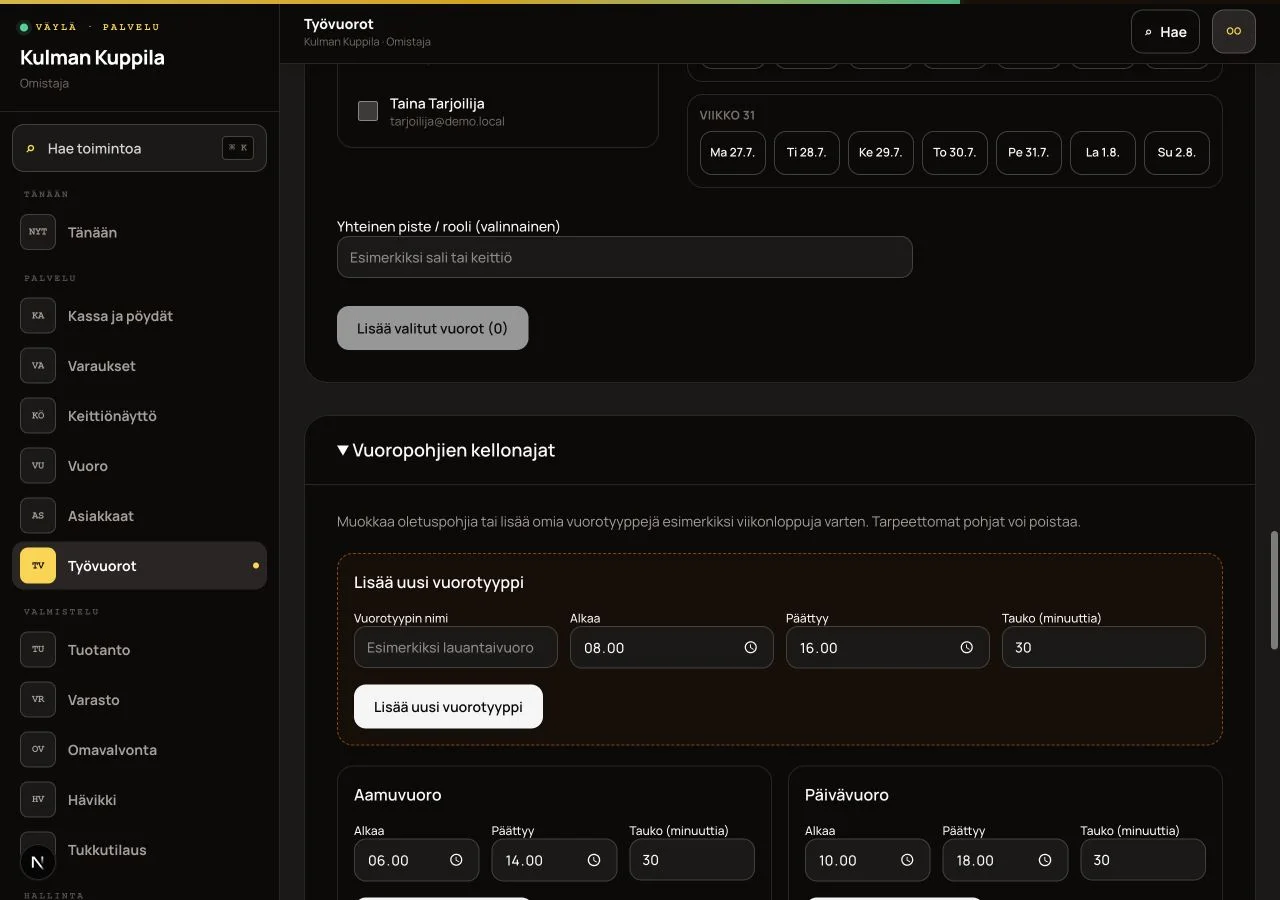
Use Shift template times to edit the defaults and add or delete custom shift types such as Saturday or Sunday. An overnight shift may end earlier than it starts. Use Add a single exception shift for one-off times.
How to do it
- 1Open Shifts from the main menu and select a three-week period.
- 2Under Quick planning, select a shift template, one or more employees and the dates.
- 3Add an optional shared station or role and select Add selected shifts.
- 4Edit template times or add a custom shift type under Shift template times.
- 5Add an exception individually, and edit or delete shifts from Edit in the roster grid.
Who can do this?
- Planning: owner or manager
02
Mark shift preferences for the next period
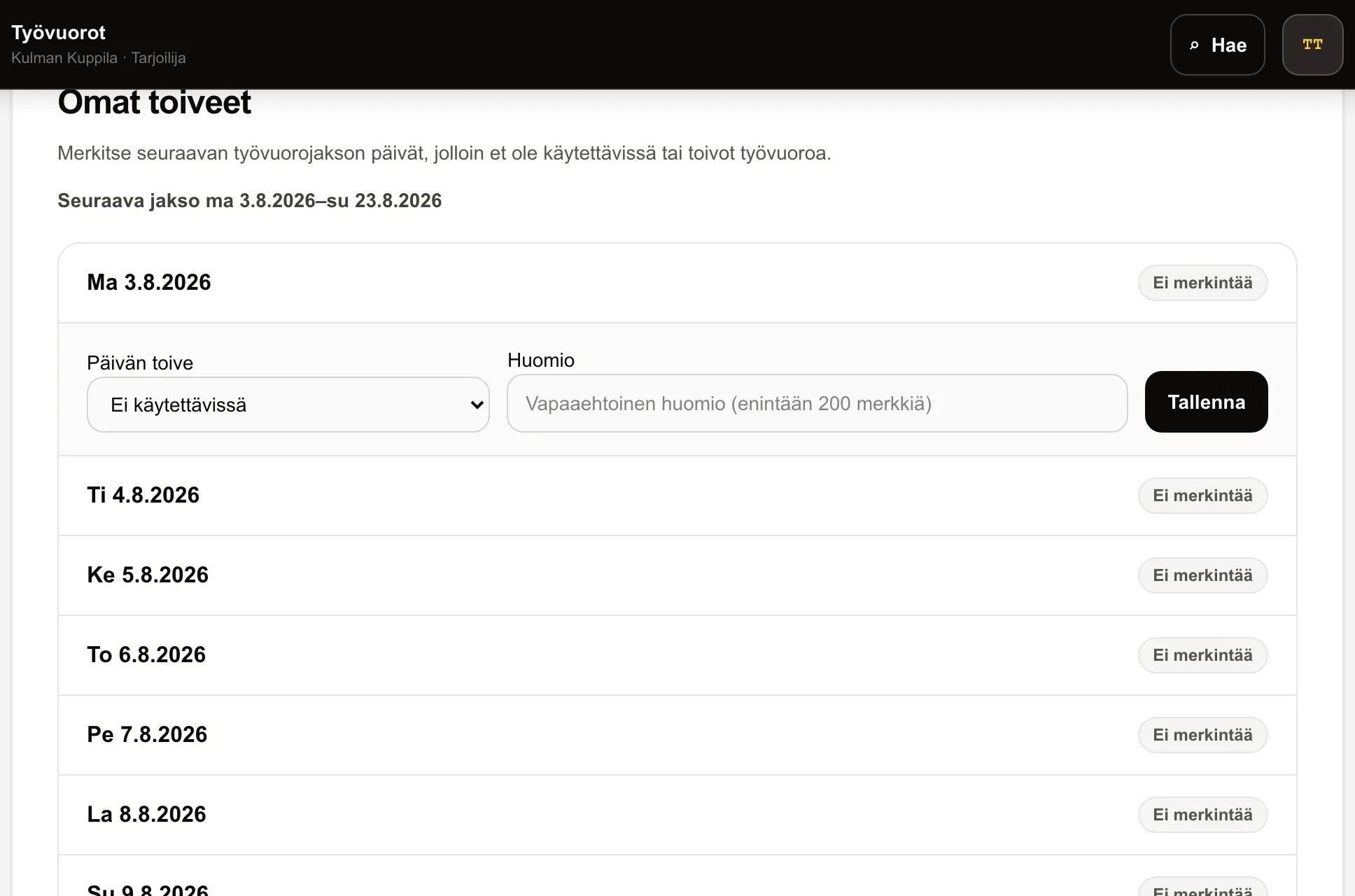
Every employee can mark a day in the next roster period as Unavailable or Would like a shift under My preferences, with an optional note. Owners and managers see the marker in the employee’s day cell in the roster grid while planning.
How to do it
- 1Open My preferences on the Shifts page and select a day.
- 2Select Unavailable or Would like a shift, add an optional note and save.
- 3Clear the preference from the same day if your situation changes.
Who can do this?
- Mark preferences: all staff for their own days
- View while planning: owner or manager
03
Record absences and review shift conflicts
Owners and managers record an employee’s sick leave, annual leave or other absence in the Absences section, including the date range and an optional note. Absences relevant to the selected three-week period appear in the same section and can be deleted there. Deletions are recorded in the audit log.
The roster grid marks absence days with S, L and M badges and distinct background colors. If an employee already has a shift on an absence day, the warning above the grid names the employee, date and absence type. Employees see their own absences below their upcoming shifts.
How to do it
- 1Select the employee and absence type in the Absences section.
- 2Enter the first and last absence dates and an optional note.
- 3Select Record absence.
- 4Review the absence badges in the grid and correct shifts named in the warnings.
Who can do this?
- Record and delete: owner or manager
- View own absences: waiter or kitchen
04
Clock working time and correct entries
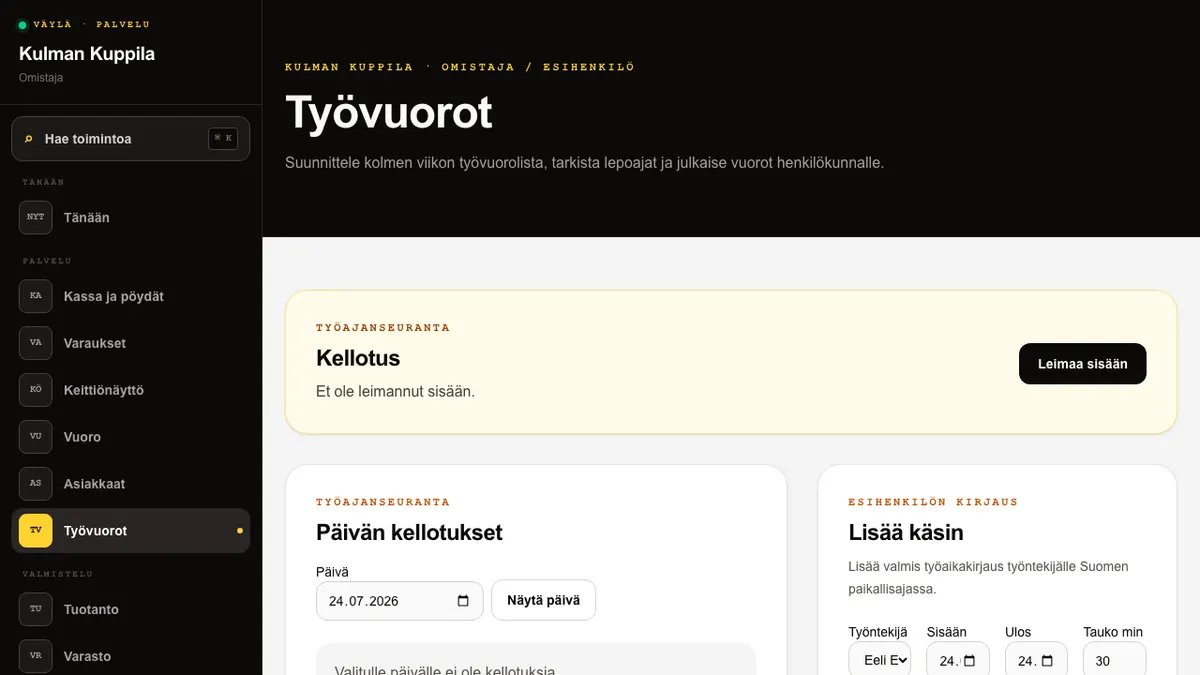
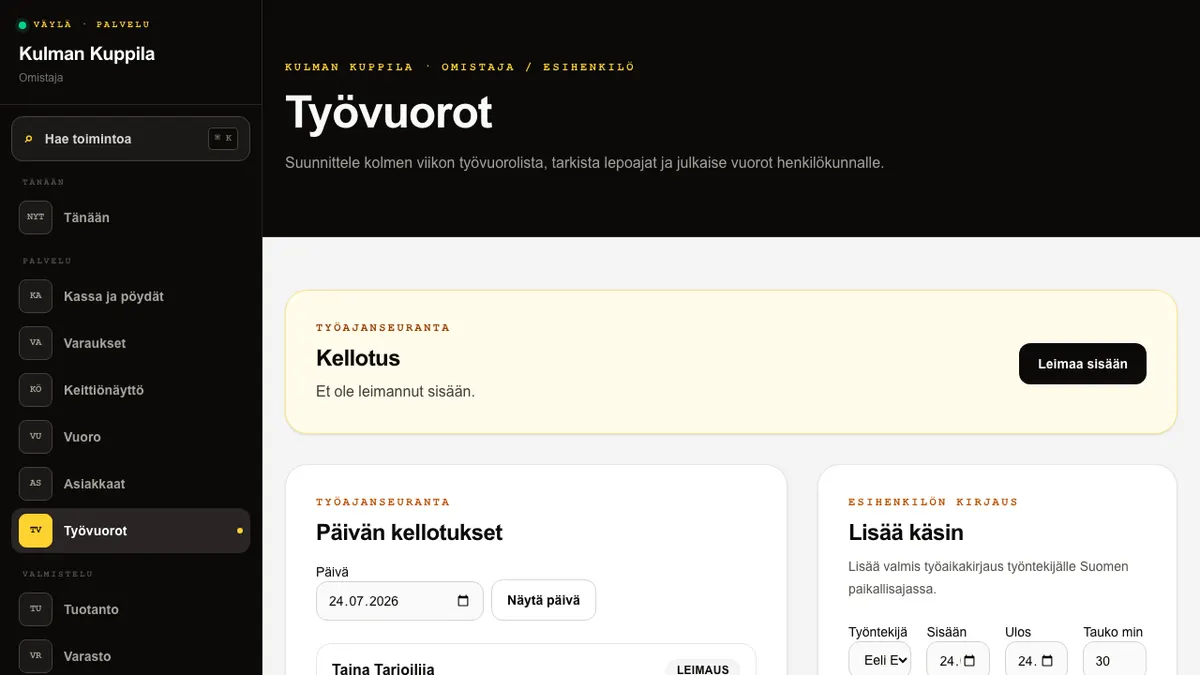
The quick clocking card in the Today view is shown to every staff role, including owners. You can clock in and out directly from the dashboard, and the card shows elapsed working time after you clock in. If you clock out from the quick card, the entry is saved with 0 break minutes.
The Clocking card on the Shifts page is the detailed clocking path. Select Clock in when the shift starts. The clocking is linked automatically to your nearby shift when one exists; otherwise it is saved as a free clocking. Enter the day’s break minutes on the Shifts page when you clock out at the end of the shift.
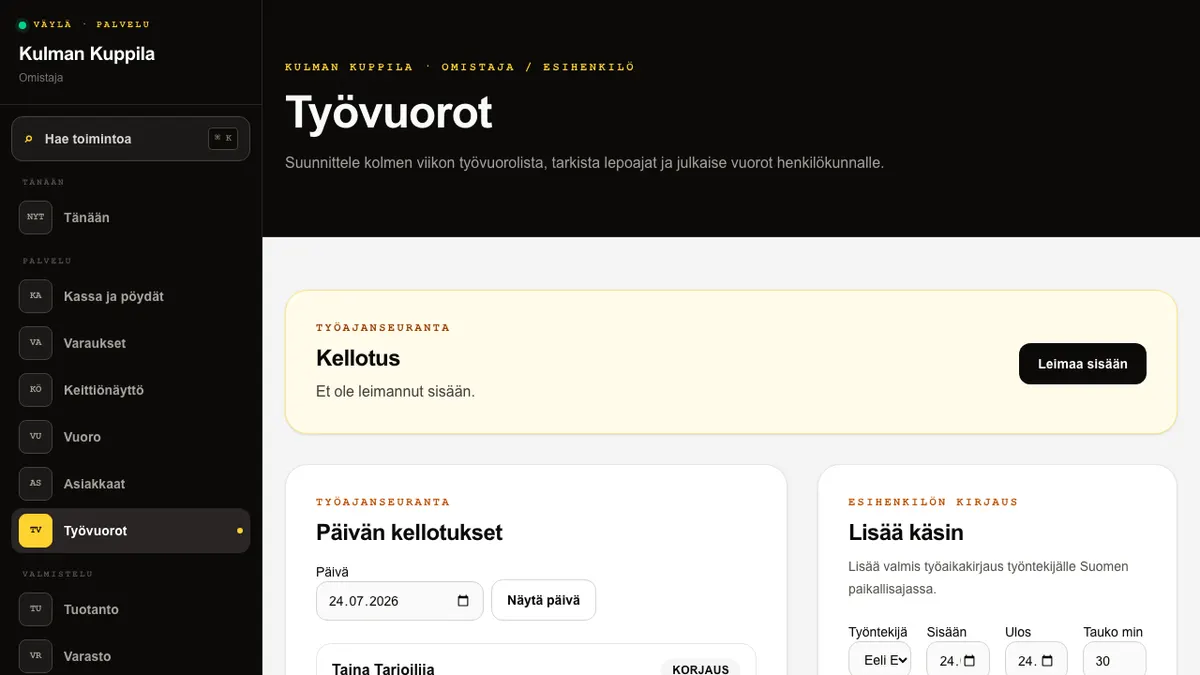
Owners and managers can view clockings for a selected date under Today’s clockings. The list shows the employee, clock-in and clock-out times, break, entry source and linked shift. Open Correct clocking to adjust times or the break. Use Add manually to save a missing completed entry for an employee.

How to do it
- 1Open the quick clocking card in Today or the Clocking card on the Shifts page.
- 2Select Clock in when the shift starts.
- 3Check the elapsed working time in the quick clocking card when needed.
- 4When the shift ends, enter the total break minutes on the Shifts page and select Clock out. Clocking out from the dashboard saves 0 break minutes.
- 5When needed, an owner or manager selects the date and corrects or adds the missing entry.
Who can do this?
- Clocking: all staff
- Corrections and manual entries: owner or manager
05
Review the period summary and export hour data
The Period summary is shown to owners and managers for the selected three-week period. Figures are calculated only from completed actual time entries that have a clock-out. The table separates worked and regular hours, additional work, overtime in the 50 and 100 per cent classes, and Sunday, evening and night hours. Sunday, evening and night hours are separate classifications and may overlap base or overtime hours.
Export hour data CSV creates an employee-level period report. Export § 32 working time records CSV creates daily records with additional, overtime and Sunday work flags and identifies manual or corrected entries. Väylä classifies hours and does not calculate monetary wages. The calculations require validation by an external collective-agreement expert before payroll use.
How to do it
- 1Select the three-week period on the Shifts page.
- 2Review each employee’s hour classifications in the Period summary table.
- 3Correct missing or incorrect actual entries under Daily clockings.
- 4Download the hour data or working time records CSV when needed.
- 5Provide the data to a payroll expert only after external collective-agreement validation.
Who can do this?
- Owner
- Manager
06
Review planning warnings
The view warns about a gap below 11 hours, a period-work rest below 9 hours, a shift over 10 hours and more than seven consecutive working days. Each warning names the employee and date so the relevant shift can be found in the grid.
Warnings assist planning and do not block saving. A local agreement or another justified arrangement may make a deviation acceptable, so the employer reviews the situation and adjusts the shift when needed.
How to do it
- 1Read the warnings shown above the grid.
- 2Open the named employee’s shift on the date shown in the warning.
- 3Change the shift or confirm that the deviation has an acceptable basis.
Who can do this?
- Owner
- Manager
07
Publish the roster on time
Under the hospitality collective agreement, the roster must be given to staff no later than one week before the period starts. If fewer than seven days remain or the period has started, the view shows a warning and requires I knowingly publish this roster late.
After publication, an employee only sees their own published upcoming shifts. Owners and managers can still add, edit and delete shifts, but every post-publication change and the publication itself are recorded in the audit log.
How to do it
- 1Review the shifts and planning warnings before publishing.
- 2If publication is late, confirm that you knowingly publish late.
- 3Select Publish roster.
- 4Inform staff separately about changes agreed after publication.
Who can do this?
- Publish and make changes: owner or manager
- Own published shifts: waiter or kitchen