
01
Create your restaurant
Registration creates a separate location for your restaurant, an owner account and the tools you select. This keeps every restaurant’s data and views separate.
Select Start for free on the Väylä home page or go to /aloita. You need the restaurant name, the owner’s email address and a password with at least 12 characters.
How to do it
- 1Enter the Restaurant name.
- 2Choose the Address identifier. Your new address is shown immediately below the field.
- 3Select the modules you need.
- 4Enter the owner’s email address and password, then accept the terms.
- 5Select Create your restaurant. The completed location opens at its own address.
Who can do this?
- Restaurant owner
02
Your address and modules
The address identifier is the first part of your restaurant’s web address, for example yourrestaurant.vayla.dev. Use lowercase letters, numbers and, where needed, single hyphens.
Modules are Väylä’s individual tools, such as Bookings, POS and Inventory. The staff home page only shows the modules selected for the restaurant. The customer-facing website requires the Website module, while an order suggestion, for example, requires both Inventory and Wholesale orders.
There is not yet a self-service view for managing module selections. During the pilot, Väylä support can help if the selections need to be changed after registration.
Who can do this?
- Restaurant owner
- Väylä support during the pilot
03
Setup checklist
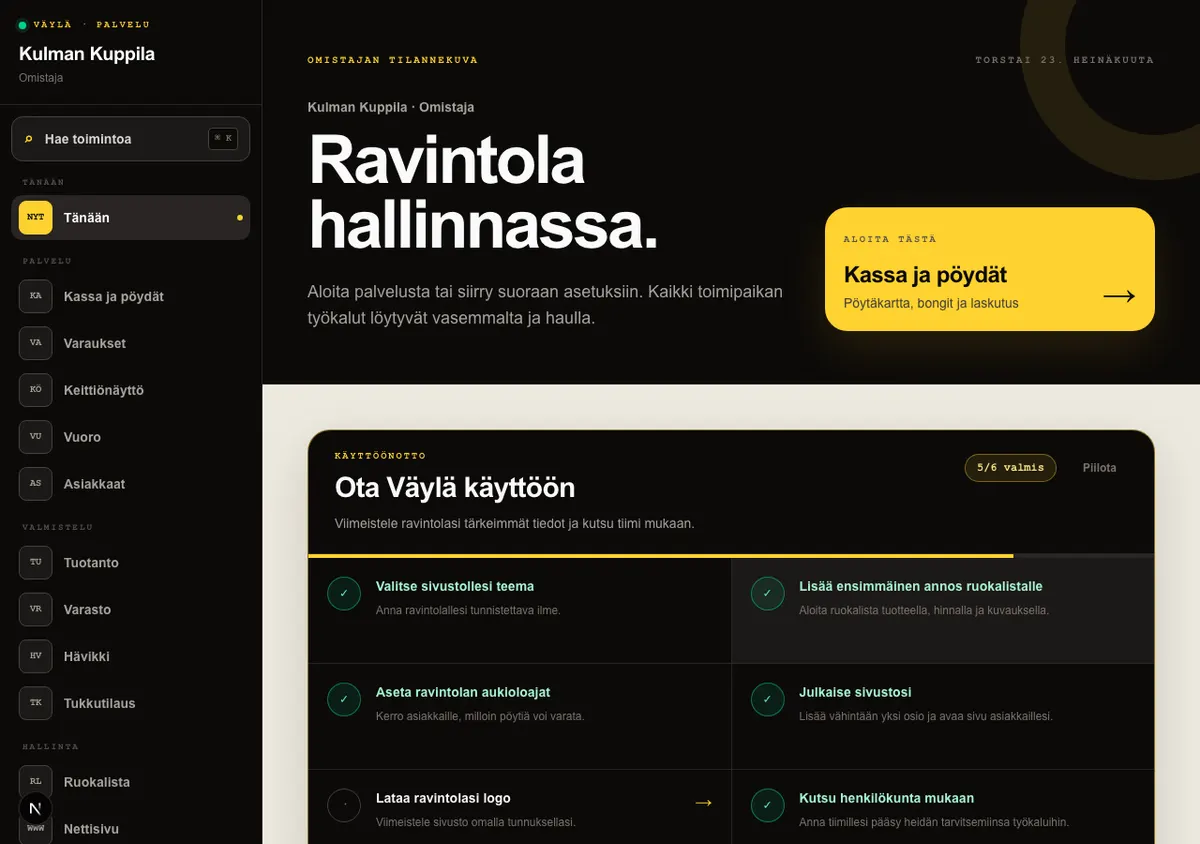
The setup card in Today adapts to the user’s role and enabled modules. Owners and managers see the six-step restaurant setup when Inventory and Production are not enabled. When the kitchen modules are enabled, the card guides them from ingredients to dish and production recipes and the first planned batch.
The restaurant setup steps are choosing a theme, adding the first dish, setting opening hours, publishing the website, uploading a logo and inviting staff. Each step opens the correct tool directly, so you do not need to search the menu.
Kitchen staff see a First kitchen shift guide with direct links to orders, the preparation queue, ingredients and food-safety checks, depending on what the location uses. It is a short orientation for the first shift, not a required course.
The cards are optional. Hide guide removes the role-specific card for that user on that device, and skipping it never blocks the workspace. Recipe and production guidance is shown only to owners or managers with the relevant module enabled.
How to do it
- 1Open the Today view in the staff workspace.
- 2Select the setup card for your role and open the first incomplete step.
- 3Make the change in the tool that opens, then return to Today to check your progress.
- 4As kitchen staff, start by choosing your station and move through KDS: New → Preparing → Ready for pickup.
- 5Select Hide guide if you no longer want to see the role-specific guide.
Who can do this?
- Owner
- Manager
04
Settings in one place
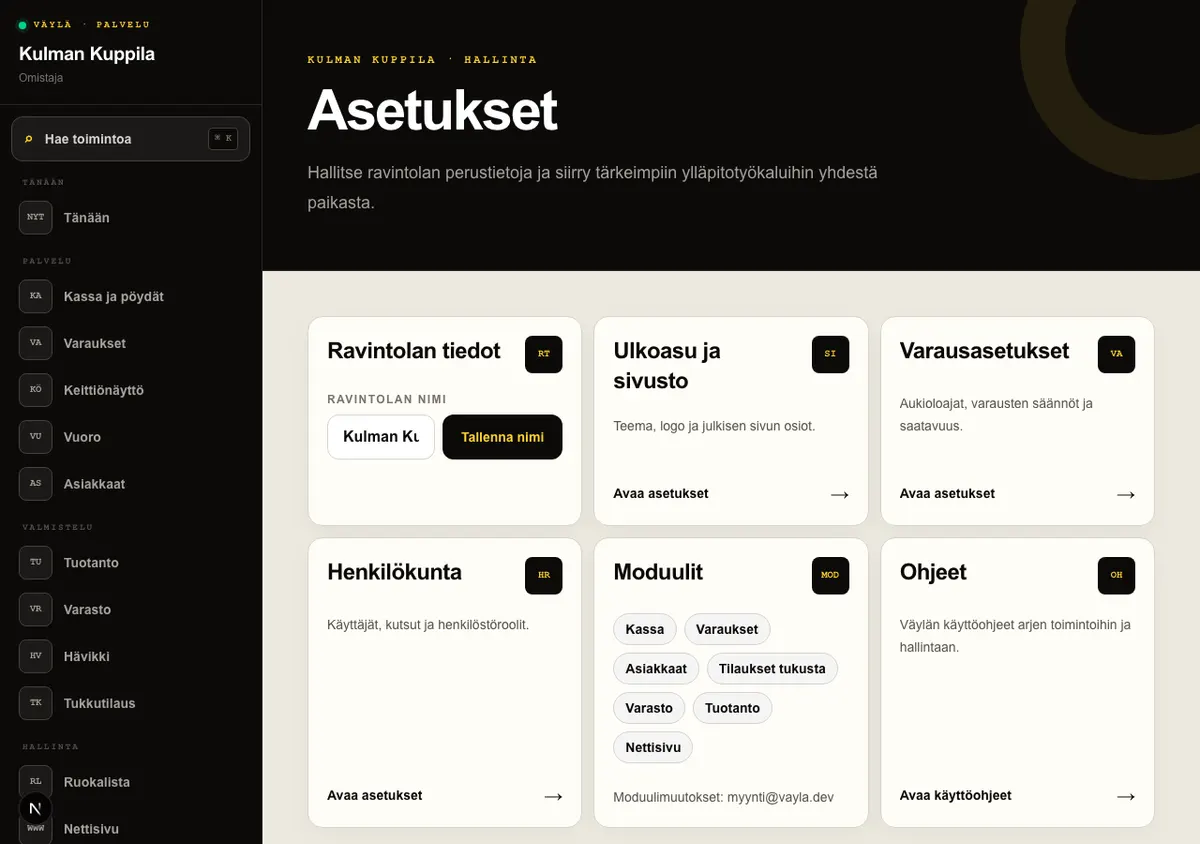
The Settings view brings the restaurant’s basic details and key management tools together. Open it from the main menu or at /app/asetukset when you need to update information or find the correct setting.
Only an owner can change the restaurant name. The saved name appears immediately on the public website and as the installed app’s name. A manager can see the name but cannot change it.
The link cards open appearance and website settings, booking settings and staff management. The Modules card shows the enabled tools, but you cannot change them yourself; contact myynti@vayla.dev for changes. The Help card opens the Väylä user guide.
How to do it
- 1Open Settings from the main menu.
- 2As an owner, change the name on the Restaurant details card and select Save name.
- 3Open the appropriate management tool from the Appearance and website, Booking settings or Staff card.
- 4Check the enabled tools on the Modules card and request changes by email when needed.
Who can do this?
- Page access: owner and manager
- Edit name: owner
05
My account, user menu and staff language
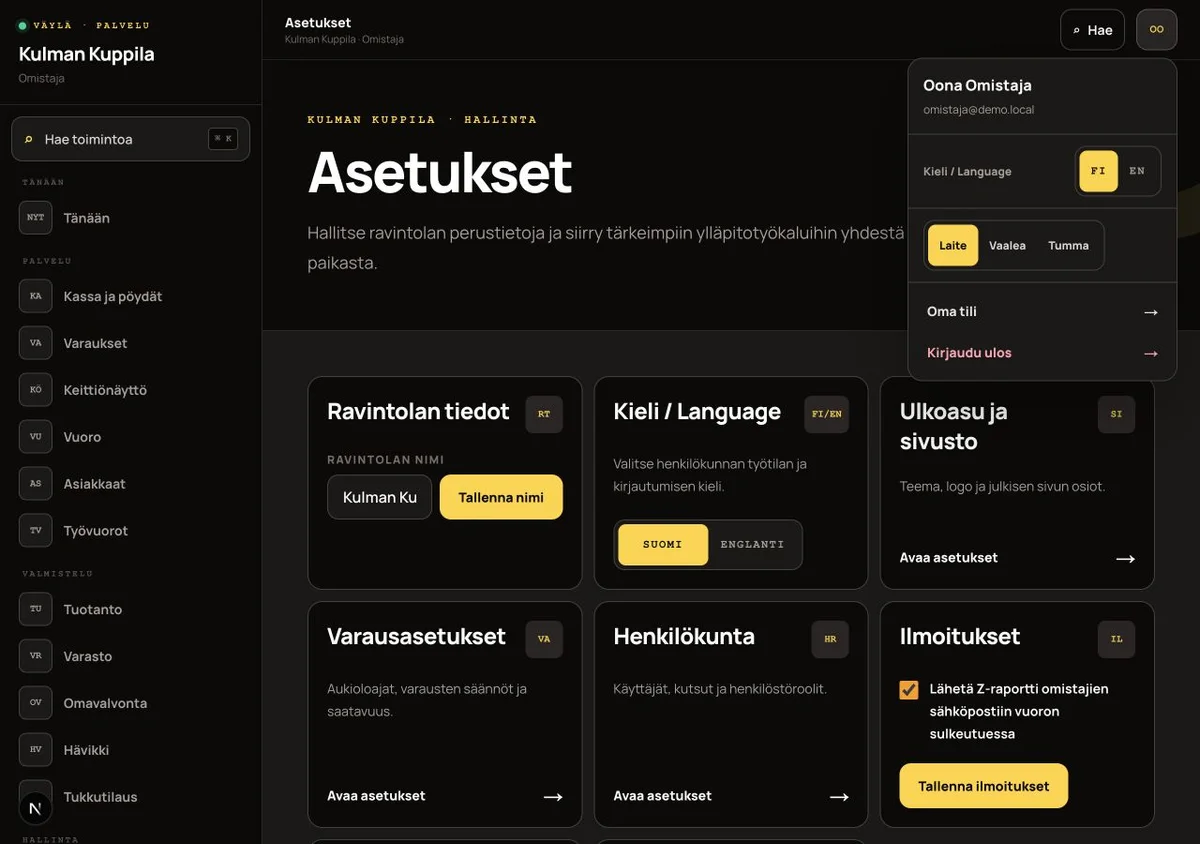
The staff workspace has a persistent top bar at every screen width. The identity chip in the top-right corner shows your initials. Open it to access the user menu, which shows your name and email address and a link to My account.
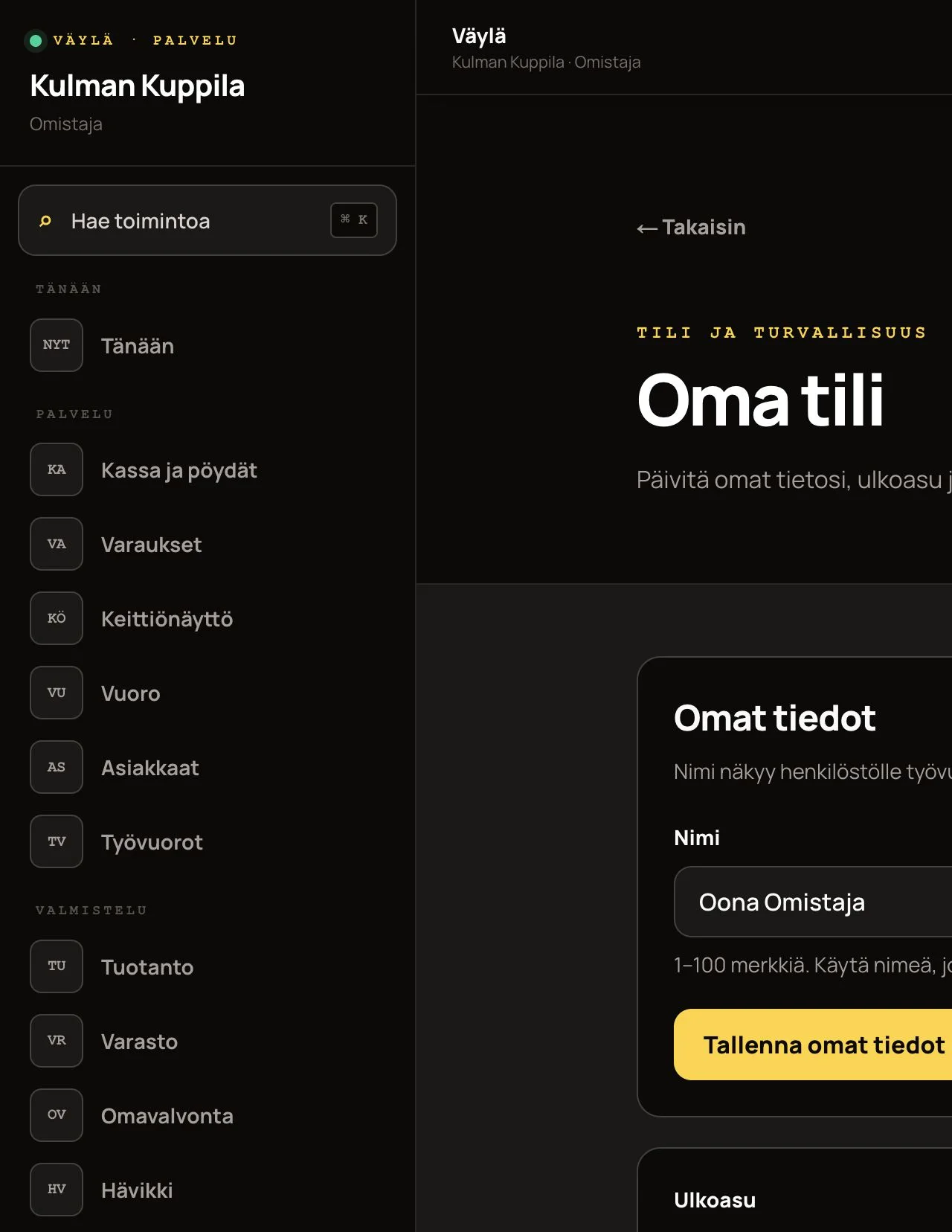
In My account, you can update your name, choose the device, light or dark theme, and change your password. The theme is saved in the browser you are using. Name changes are reflected in rosters, events and the user menu.
The staff workspace and sign-in page can be displayed in Finnish or English. You can choose the language on the sign-in page before signing in and change it from the user menu after signing in. The selection is saved in the browser you are using, so the same language is used the next time you open Väylä.
The language choice switches the entire staff workspace: the shell, the Today view, sign-in and every module page from POS to inventory and shifts. Currency and dates always retain the Finnish format.
Sign out ends the session on this device. Sessions on other devices remain active so that, for example, dining-room and kitchen workstations are not signed out by accident.
How to do it
- 1Sign in to the staff workspace at the restaurant’s own address.
- 2Select your initials in the top-right corner of the persistent top bar.
- 3Open My account when you want to update your name, theme or password.
- 4Change the language to FI or EN when needed, or select Sign out to end the session on this device.
Who can do this?
- All staff roles
06
Main menu and search
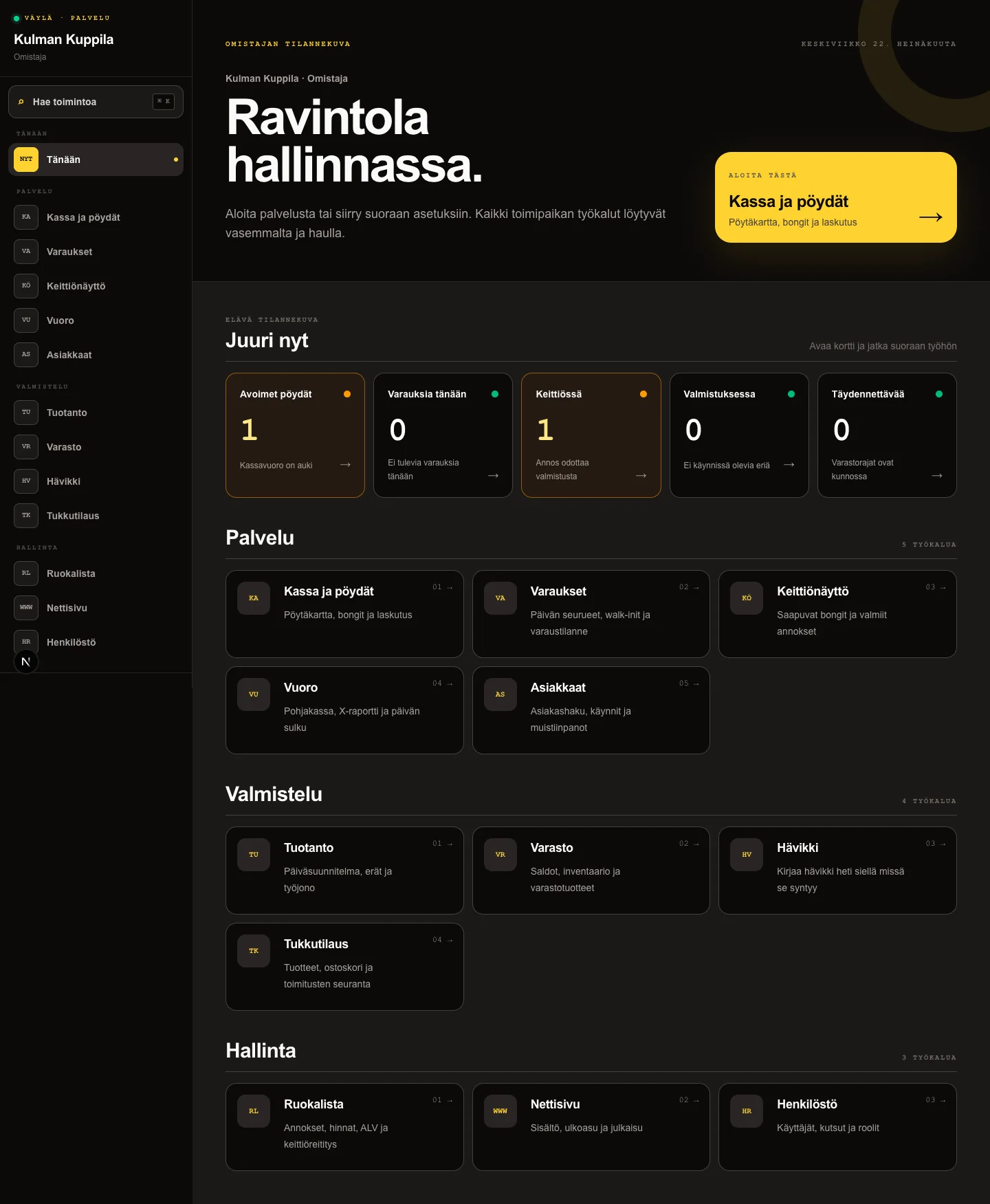
The staff workspace remains available in every view. On desktop, the main menu is on the left. On mobile, the most important actions are at the bottom and the full menu opens from the Menu button at the top.
The Right now cards in the Today view show the situation relevant to your role, such as open tables and the shift, the next booking, dishes waiting in the kitchen, production batches and stock that needs replenishment. Select a card to handle the item directly.
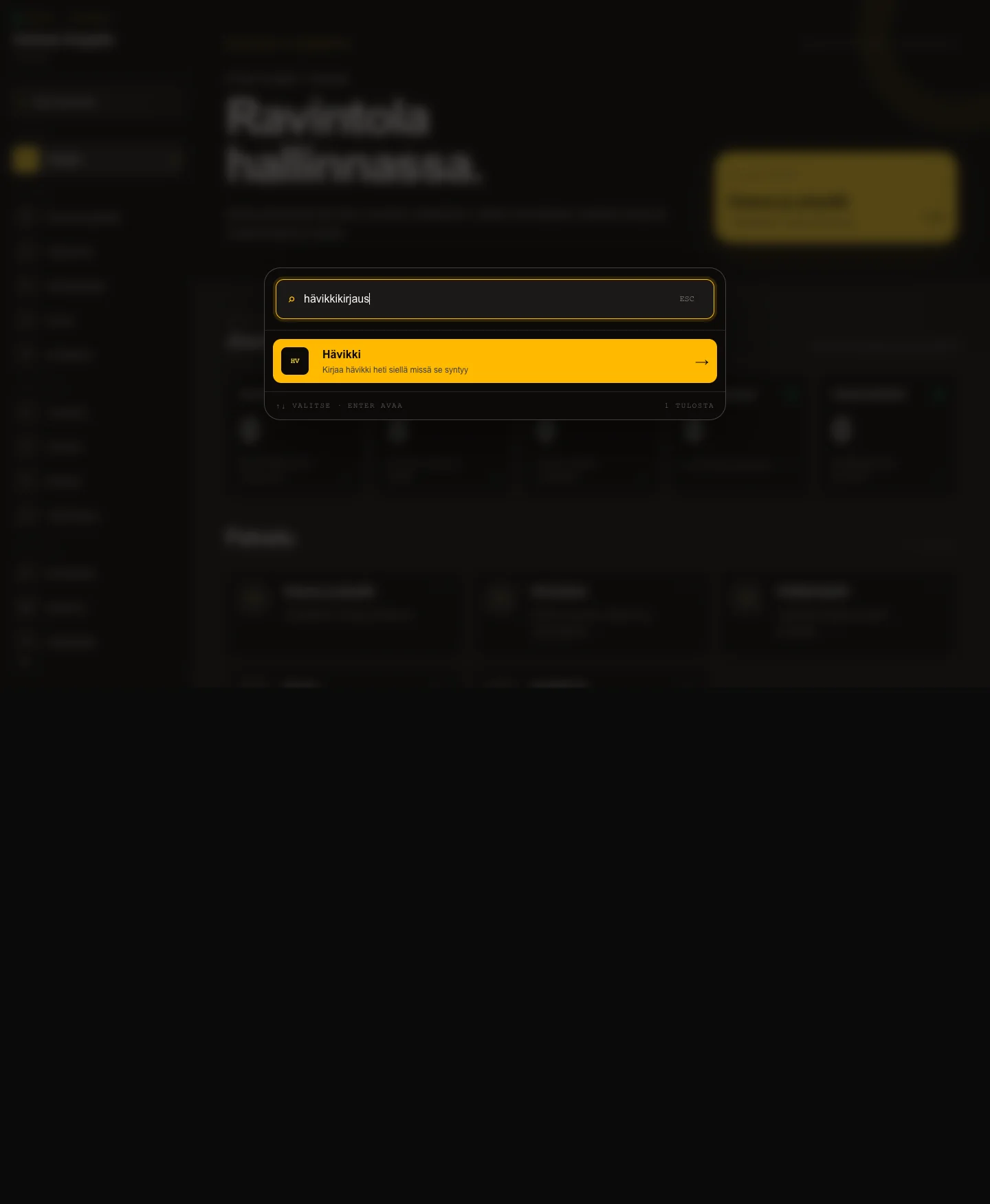
Select Search actions or press Ctrl+K (⌘K on a Mac). Enter a task such as table, waste, booking or shift. Search only shows tools allowed for your role and enabled for the restaurant. Esc closes search, and the arrow keys move through the results.
How to do it
- 1Open the staff workspace at the restaurant’s own address.
- 2Choose an action from the main menu or open Search actions.
- 3Enter the task you want to perform and open the result.
- 4Return to Today from the Väylä logo or the Today link in the main menu.
Who can do this?
- All staff roles, with the permissions of their own role
07
Staff permissions
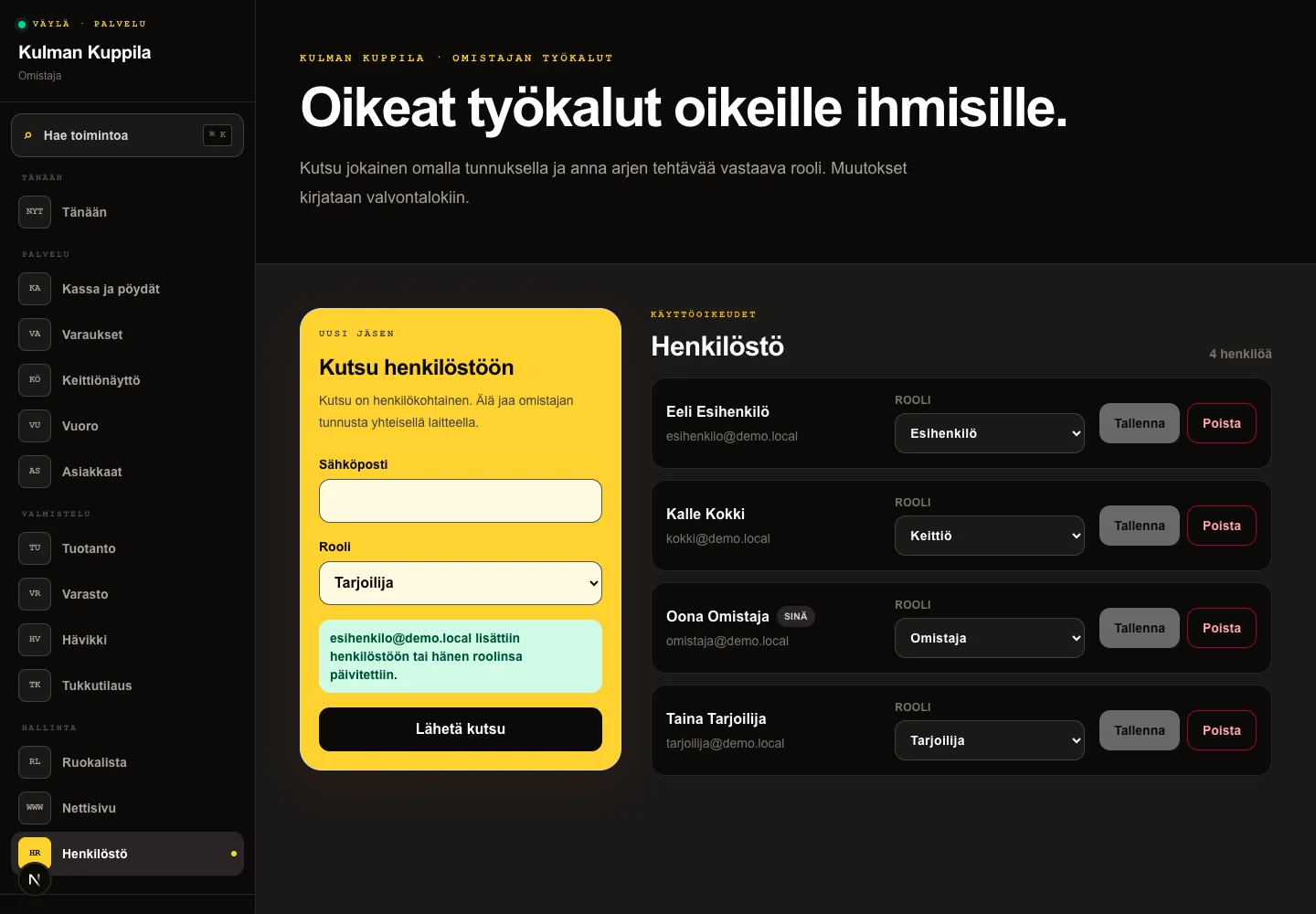
Roles determine what each person can see and do. Owners and managers handle settings and oversight, waiters handle daily dining-room and customer work, and the kitchen role uses the kitchen display and production queue.
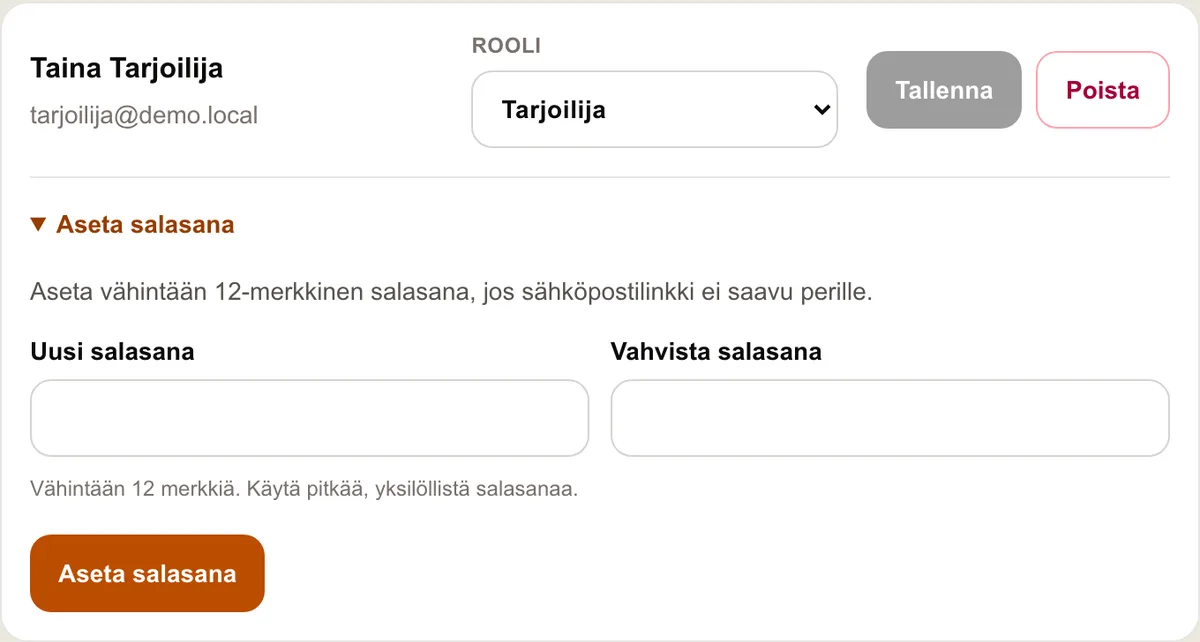
An owner opens Staff, invites an employee by email and selects a role. The invitation only adds the user to this location. The role can be changed later in the same view, and changes are recorded in the audit log. The last owner cannot be removed or changed to a lower role.
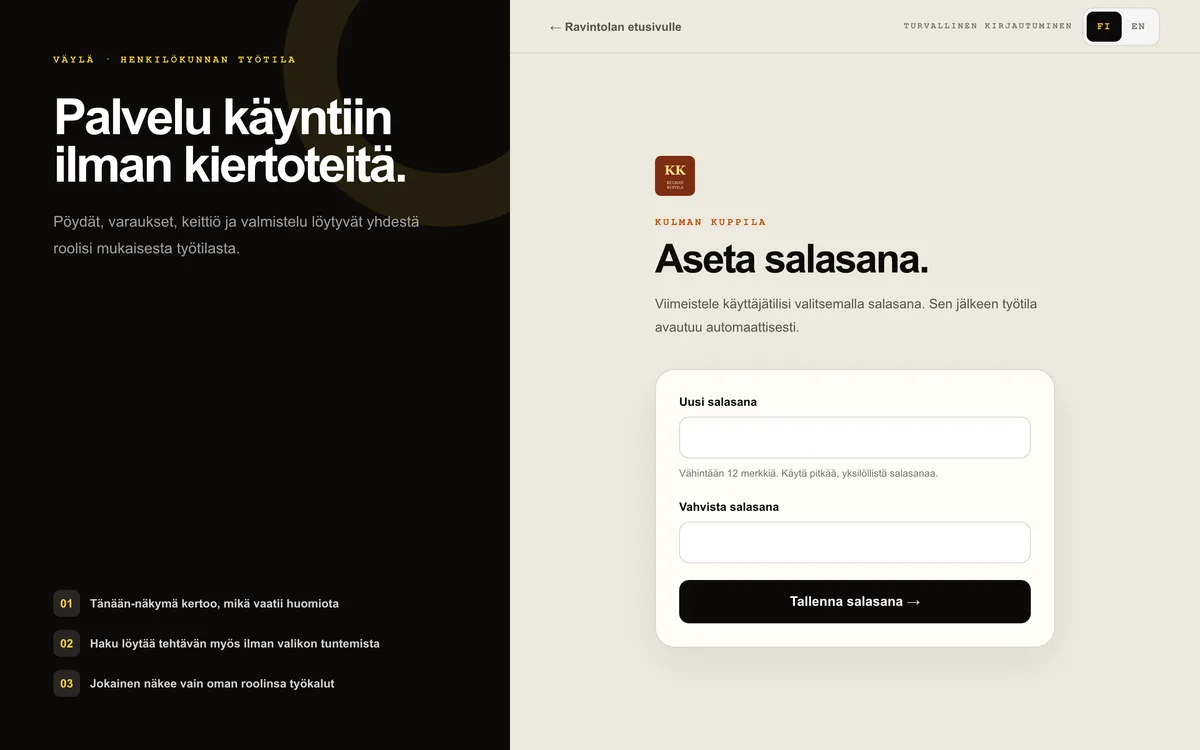
A new employee opens the email invitation, sets a password with at least 12 characters and then continues directly to the restaurant’s staff workspace.
If the email link does not arrive, the owner can set the employee’s password directly in Staff. The employee can change it later through Forgot your password? on the sign-in page.
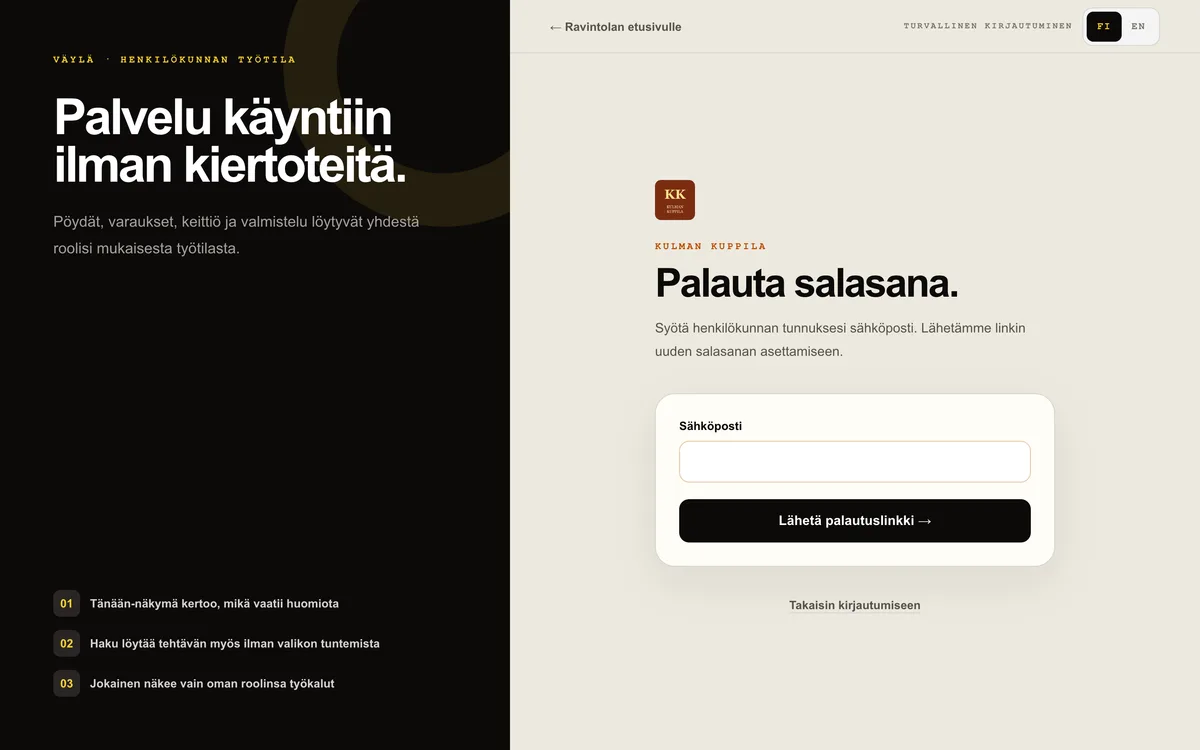
If a password is forgotten or has not yet been set, use Forgot your password? on the sign-in page to request a reset link by email. The link opens the set-password form. Sign in with an email link sends a single-use link that opens the workspace without a password.
How to do it
- 1Open Staff from the main menu.
- 2Enter the employee’s email address and select a role.
- 3Select Send invitation: a new user receives an email invitation, an inactive account receives a password-setup link, and an active Väylä user receives a personal one-time sign-in link.
- 4Change the role on the person’s card and select Save, or remove access when needed.
Who can do this?
- Manage roles: owner
- Use own workspace: all staff roles